How to Export ChatGPT Conversations to Any Format (2026)
One-Click Export: Save any ChatGPT conversation as PDF, DOCX, Markdown, TXT, or JSON in 2 seconds. Browser extension — no signup, no copy-paste needed.

TL;DR: The fastest way to export a ChatGPT conversation is a free browser extension: right-click the chat in your sidebar and pick .pdf, .docx, .md, .txt, or .json — done in about 2 seconds. ChatGPT's built-in export emails you your entire history as JSON; fine for a full backup, useless for a single chat.
If you use ChatGPT regularly, you've probably wanted to save a conversation — maybe to reference later, share with a colleague, or keep a backup. But ChatGPT doesn't make it obvious how to do this.
Here are three ways to export your ChatGPT conversations, from easiest to most manual.
Method 1: Use a Browser Extension (Fastest)
The quickest way to export a ChatGPT conversation is with a browser extension like ChatGPT Pro Tools.
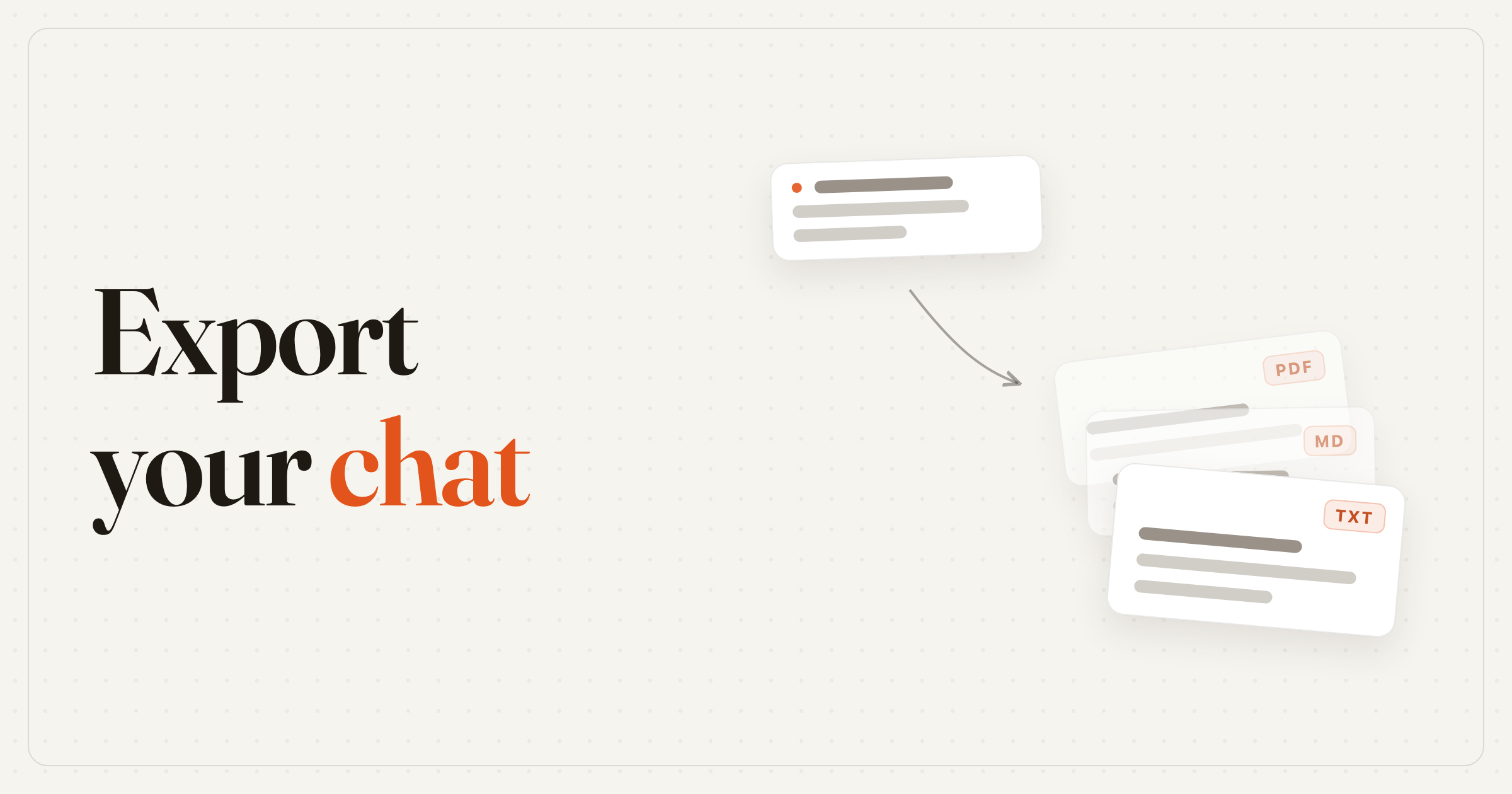
Once installed, right-click any conversation in your sidebar and choose your export format:
- Export (.pdf) — PDF document, perfect for sharing or archiving
- Export (.docx) — Word document, ready for editing in Word or Google Docs
- Export (.md) — Markdown format, ideal for Notion, Obsidian, GitHub, or any Markdown editor
- Export (.txt) — plain text, opens in any editor
- Export (.json) — structured data, handy for scripts and archives
Beyond files, the same extension can save any assistant reply as speech — pick a voice and download the answer as an audio file.
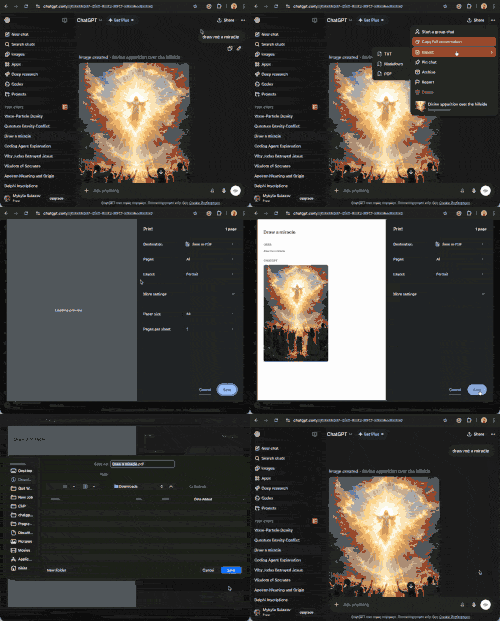
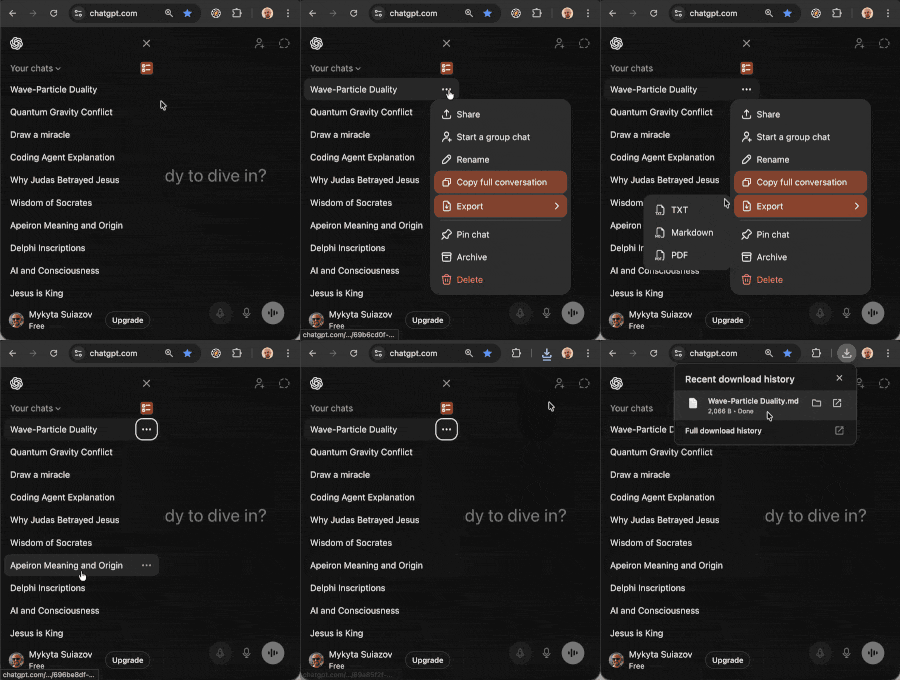
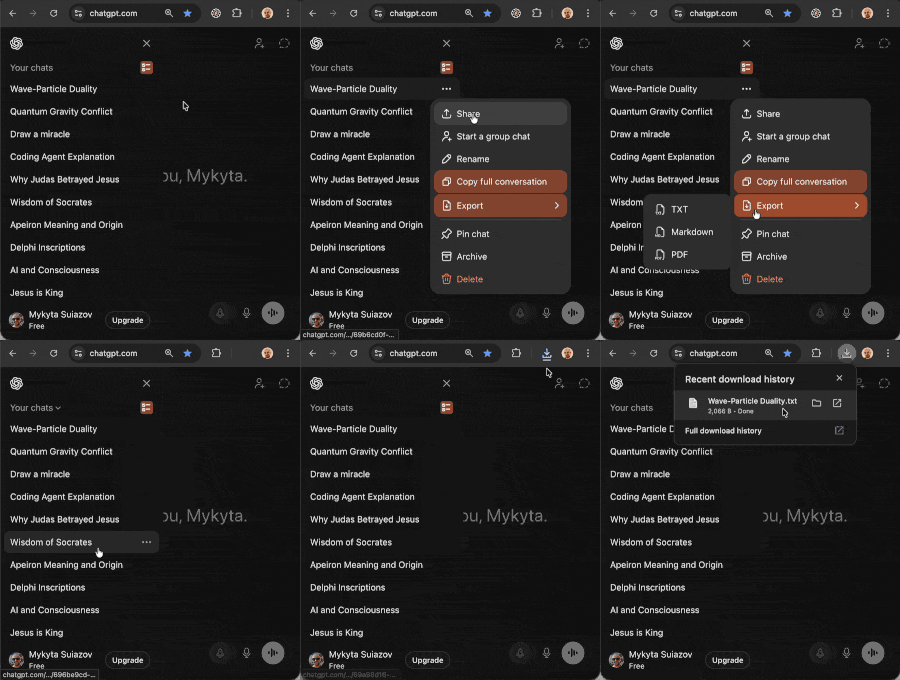
Each export takes about 2 seconds and works for any conversation in your history.
The extension is free and works on Chrome, Edge, and Firefox — no signup, no API keys.
For detailed guides on each format, see: Export ChatGPT to PDF, Export ChatGPT to Word, Export ChatGPT to Markdown, Export ChatGPT to Text, and Export ChatGPT to JSON.
Which Export Format Should You Choose?
All five formats carry the full conversation — the difference is what you do with the file afterwards:
| Format | Best for | Opens in | Guide |
|---|---|---|---|
| Sharing and archiving a finished chat as-is | Any PDF viewer | PDF guide | |
| .docx | Editing the conversation after export | Word, Google Docs | Word guide |
| .md | Notes apps and version control | Obsidian, Notion, GitHub | Markdown guide |
| .txt | Maximum compatibility, zero formatting | Any text editor | Text guide |
| .json | Scripts, pipelines, structured archives | Code editors, your own tools | JSON guide |
Rule of thumb: pick .pdf when the reader is a person, .docx when the text still needs work, .md when it's going into a notes system, and .json when the reader is a program. When in doubt, .txt opens everywhere.
Method 2: ChatGPT's Built-in Data Export
ChatGPT has a native export feature, but it exports all your conversations at once, not individual ones:
Go to Settings (bottom-left corner)
Click Data controls
Click Export data
Wait for an email with a download link
Download the ZIP file containing your conversations in JSON format
This is useful for full backups but not practical if you just want to save one specific chat. The export is also in JSON format, which isn't easy to read without processing.
Method 3: Manual Copy-Paste
The most basic approach:
Open the conversation you want to save
Select all the text (Ctrl+A / Cmd+A)
Copy it (Ctrl+C / Cmd+C)
Paste it into a text editor or document
The downside: ChatGPT conversations can be long, and selecting everything manually often misses parts of the chat or includes UI elements you don't want.
Which Method Should You Use?
| Method | Speed | Format | Scope |
|---|---|---|---|
| Browser extension | 2 seconds | .pdf, .docx, .md, .txt, .json | Single chat |
| Built-in export | Minutes (email) | JSON (all chats) | All chats |
| Manual copy-paste | Varies | Depends on editor | Single chat |
For most people, a browser extension is the fastest and most practical option. If you need a full backup of everything, use ChatGPT's built-in export. Manual copy-paste works in a pinch but doesn't scale.
If you just need to copy a conversation to your clipboard (without saving a file), check our guide on copying entire ChatGPT conversations. And if your sidebar is getting cluttered after exporting, learn how to bulk delete ChatGPT chats.
Frequently Asked Questions
How do I export a single ChatGPT conversation?
Use a browser extension like ChatGPT Pro Tools. Right-click any conversation in your sidebar and choose your format — .pdf, .docx, .md, .txt, or .json. The chat downloads in about 2 seconds. ChatGPT's built-in export only lets you export all conversations at once.
What format does ChatGPT export conversations in?
ChatGPT's built-in export saves conversations as JSON files inside a ZIP archive. Browser extensions like ChatGPT Pro Tools export individual conversations as readable .pdf, .docx (Word), .md (Markdown), or .txt files — plus structured .json.
Can I export ChatGPT conversations as PDF?
Yes! With ChatGPT Pro Tools, you can export any conversation directly as a PDF file. Just right-click the conversation in your sidebar and select "Export (.pdf)". No conversion needed.
How do I backup all my ChatGPT conversations?
Go to ChatGPT Settings → Data controls → Export data. You'll receive an email with a download link for a ZIP file containing all your conversations in JSON format.