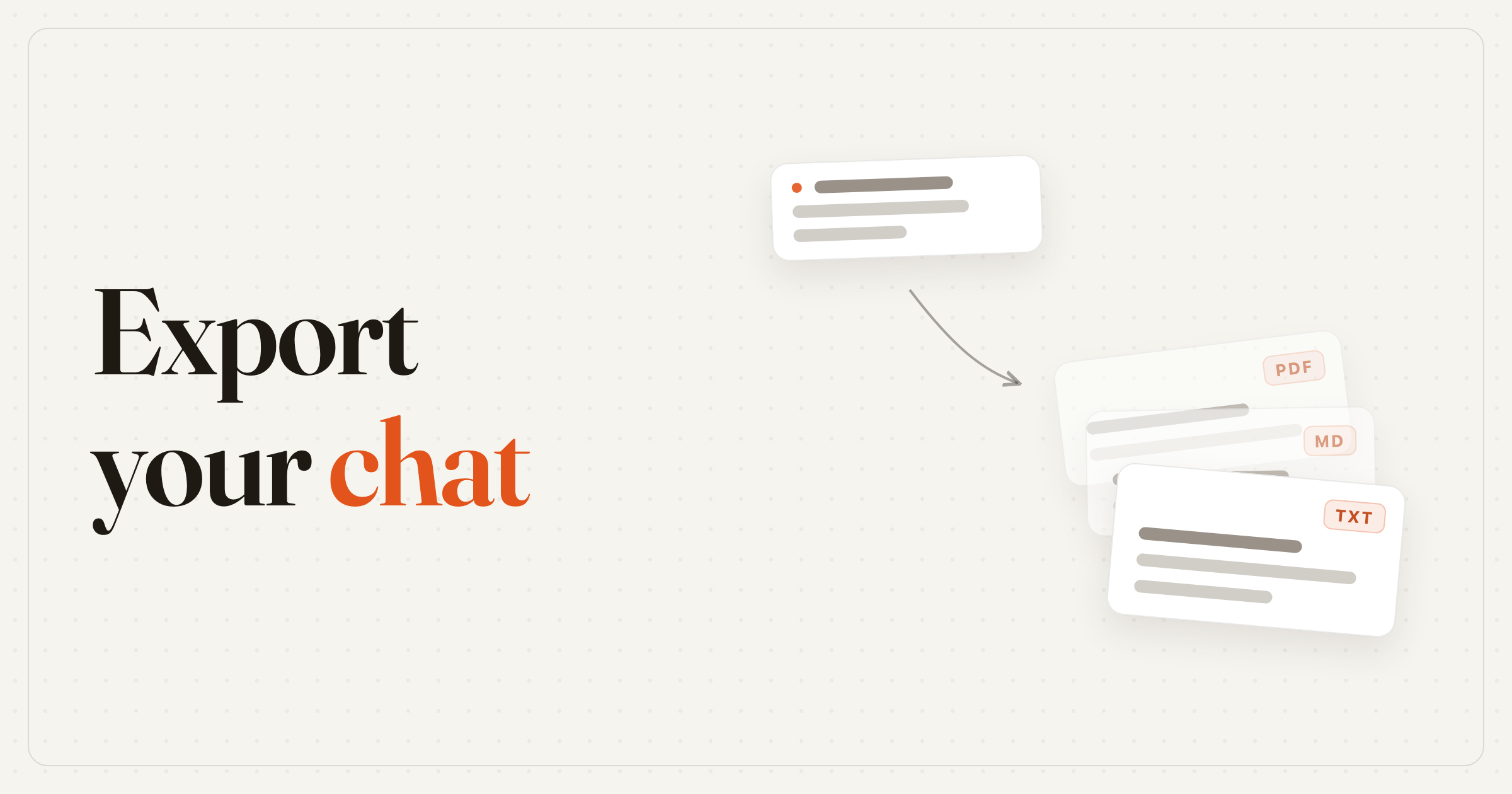
How to Export ChatGPT Conversations to Markdown (2026)
Export any ChatGPT conversation as a Markdown (.md) file in 2 seconds. Perfect for Obsidian, Notion, GitHub, and developer workflows. Browser extension.

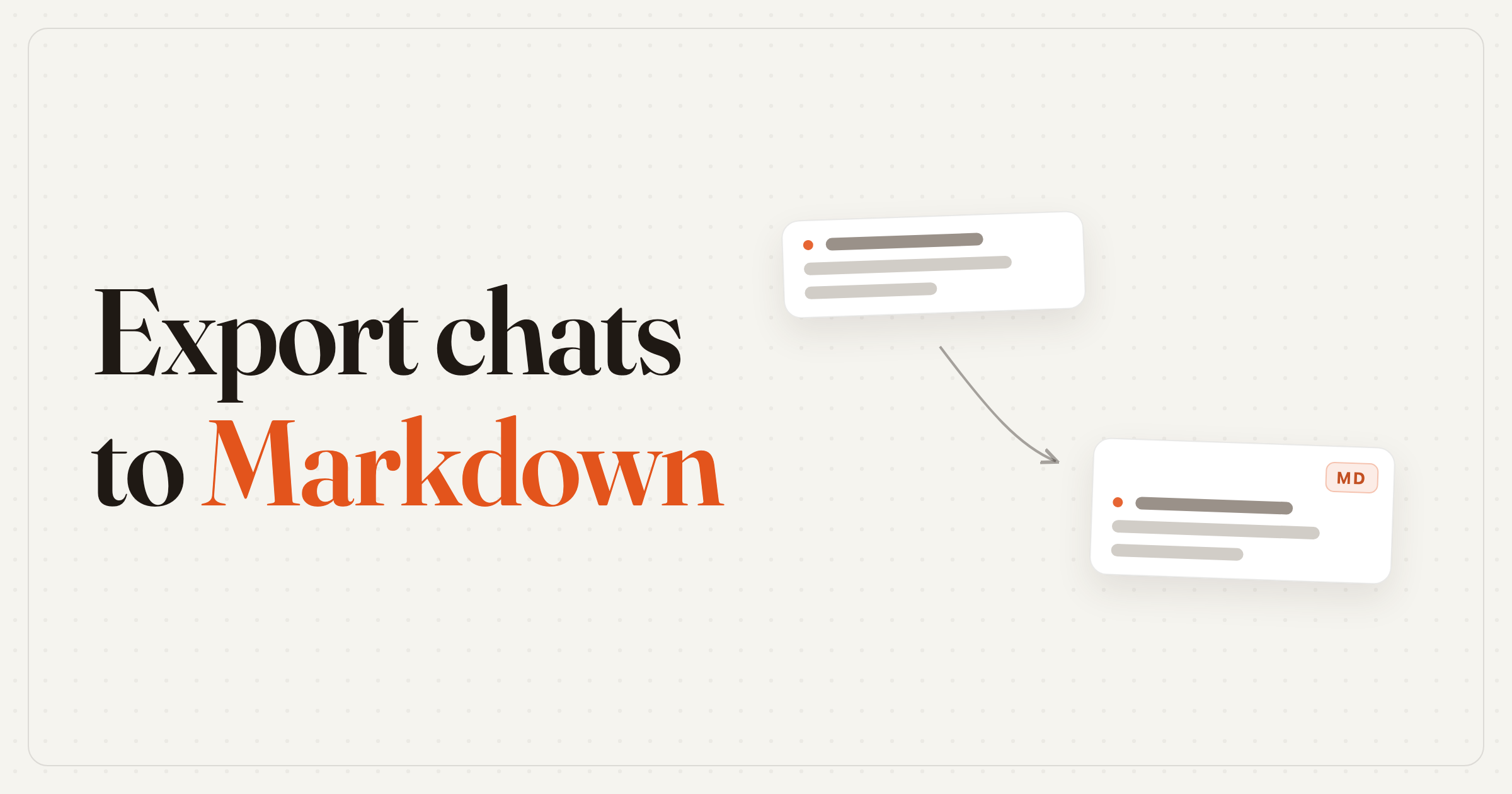
TL;DR: Right-click a chat in the ChatGPT sidebar and pick Export (.md) — a free extension turns the conversation into a proper Markdown file (headings, fenced code blocks, lists) in about 2 seconds, ready for Obsidian, Notion, or GitHub. Manual reformatting and the JSON built-in export are the slow fallbacks.
If you use tools like Obsidian, Notion, or GitHub, you probably work with Markdown daily. Exporting ChatGPT conversations as .md files lets you drop them straight into your workflow — with formatting intact.
Here's how to do it.
Method 1: Export to Markdown with a Browser Extension (Fastest)
ChatGPT Pro Tools is a free extension that adds export options directly to ChatGPT.
Install ChatGPT Pro Tools from the Chrome Web Store
Right-click any conversation in your ChatGPT sidebar
Click "Export (.md)"
The Markdown file downloads instantly
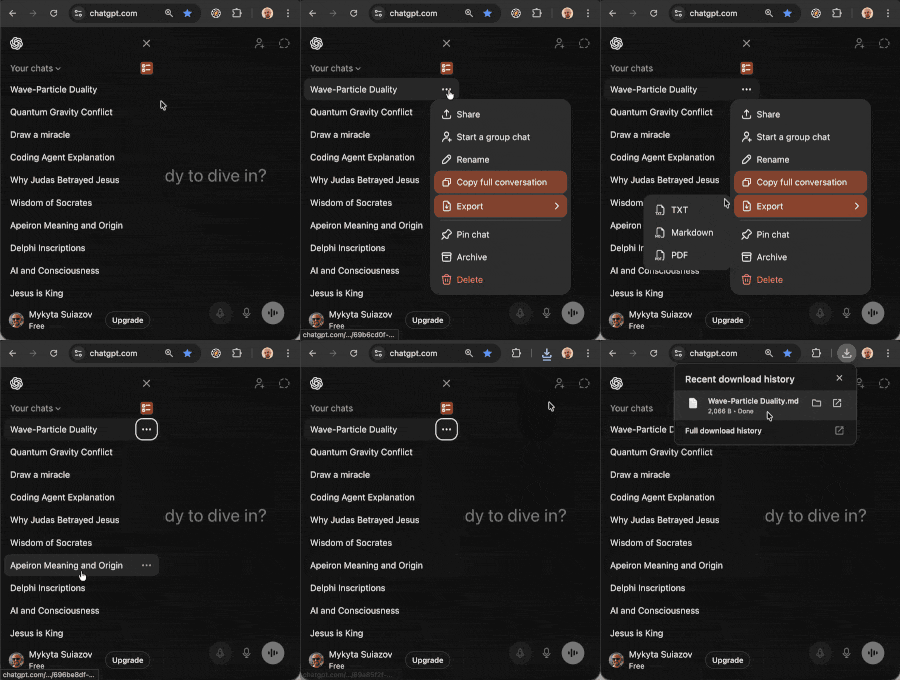
The exported file uses proper Markdown syntax — headings for speakers, fenced code blocks with language tags, bold text, lists, and more. It's ready to use in any Markdown-compatible app.
Why Markdown?
- Obsidian — drop the file into your vault and it becomes a searchable note
- Notion — import Markdown directly into any Notion page
- GitHub — commit conversations as documentation alongside your code
- Static site generators — use exported chats in Jekyll, Hugo, or Astro blogs
- Version control — Markdown diffs are clean and readable in Git
- Developer docs — code blocks are preserved with syntax highlighting tags
What the Exported File Looks Like
The .md file contains all messages in order. Your prompts and ChatGPT's responses are clearly labeled. Code blocks, lists, and formatting from ChatGPT's responses are preserved as proper Markdown syntax.
The filename matches the chat title, so your files are easy to organize.
Method 2: Manual Copy-Paste + Format
Open the conversation in ChatGPT
Select and copy the text manually
Paste into a text editor
Manually add Markdown formatting
This works but is time-consuming, especially for long conversations. You'd need to manually format code blocks, headings, and lists.
Method 3: ChatGPT Built-in Export (JSON)
ChatGPT's built-in export (Settings → Data controls → Export data) gives you a ZIP file with JSON files. JSON is not Markdown — you'd need a script or converter to transform it. Not practical for everyday use.
Comparison
| Method | Speed | Proper Markdown? | Code blocks preserved? |
|---|---|---|---|
| Browser extension | 2 seconds | Yes | Yes |
| Manual copy-paste | Minutes | No (needs formatting) | No |
| Built-in export | Minutes | No (JSON) | Raw only |
When to Use Markdown vs Other Formats
ChatGPT Pro Tools also supports PDF, Word (.docx), plain text (.txt), and JSON exports:
- Markdown — best for Obsidian, Notion, GitHub, developer workflows, and any app that renders Markdown
- PDF — best for sharing, emailing, printing, and archiving
- Text — best for maximum compatibility, small file sizes, and simple backups
For a full overview of all export options, see our complete export guide.
Frequently Asked Questions
Can I export ChatGPT conversations to Markdown?
Yes. With ChatGPT Pro Tools, right-click any conversation in your ChatGPT sidebar and select "Export (.md)". The conversation downloads as a properly formatted Markdown file in about 2 seconds.
Can I import exported Markdown into Obsidian?
Yes. The exported .md file is a standard Markdown file. Simply move it into your Obsidian vault folder and it will appear as a note. The formatting — headings, code blocks, and lists — is preserved.
Does the Markdown export preserve code blocks?
Yes. Code blocks from ChatGPT responses are exported as fenced code blocks in Markdown, preserving the language tag and formatting. This makes the exported file ideal for developer documentation.
What's the difference between Markdown and plain text export?
Markdown (.md) preserves formatting like headings, bold text, code blocks, and lists using Markdown syntax. Plain text (.txt) strips all formatting and gives you raw text. Use Markdown if you plan to open the file in apps like Obsidian, Notion, or GitHub.