How to Bulk Delete Multiple ChatGPT Chats at Once (2026)
ChatGPT still has no native bulk delete in 2026. Here's how to select and delete multiple chats at once — free, in seconds, no paid extension needed. 3 methods.

TL;DR: ChatGPT itself has no way to delete several chosen chats in one action — you can only delete them one at a time, or wipe your entire history at once. To bulk-delete just the chats you pick, install a free extension like ChatGPT Pro Tools, turn on Batch Select, tick the conversations you want gone, and click Delete. No paid plan needed.
After months of using ChatGPT, your sidebar can have hundreds of old conversations. Deleting them one by one — click the menu, click delete, confirm, repeat — is tedious and time-consuming. Here's how to clean up your ChatGPT sidebar quickly.
The Problem: ChatGPT Only Lets You Delete One Chat at a Time
As of now, ChatGPT's interface doesn't have a "select all" or "bulk delete" option. Your only native options are:
- Delete chats individually — right-click → Delete → Confirm. For 100+ chats, this takes 20-30 minutes.
- Delete all chats at once — Settings → Data controls → Delete all chats. But this deletes everything, including conversations you want to keep.
Neither option is great if you want to selectively remove some chats while keeping others.
All 3 Methods at a Glance
| Method | Deletes only the chats you pick? | Time for 100+ chats | Cost |
|---|---|---|---|
| Batch Select with ChatGPT Pro Tools | ✅ Yes | Under a minute | Free |
| Other bulk-delete extensions | ✅ Yes | Under a minute | ~$9.99/mo |
| Delete one by one (native) | ✅ Yes | 20–30 minutes | Free |
| Delete all chats (Settings → Data controls) | ❌ No — wipes everything | Seconds | Free |
ChatGPT Pro Tools does it for free; several popular alternatives lock the same batch-select behind a paid plan. The native routes are all-or-nothing — one chat at a time, or wipe the lot — which is exactly the middle ground an extension fills: remove precisely the chats you choose.
The Solution: Batch Select with a Browser Extension
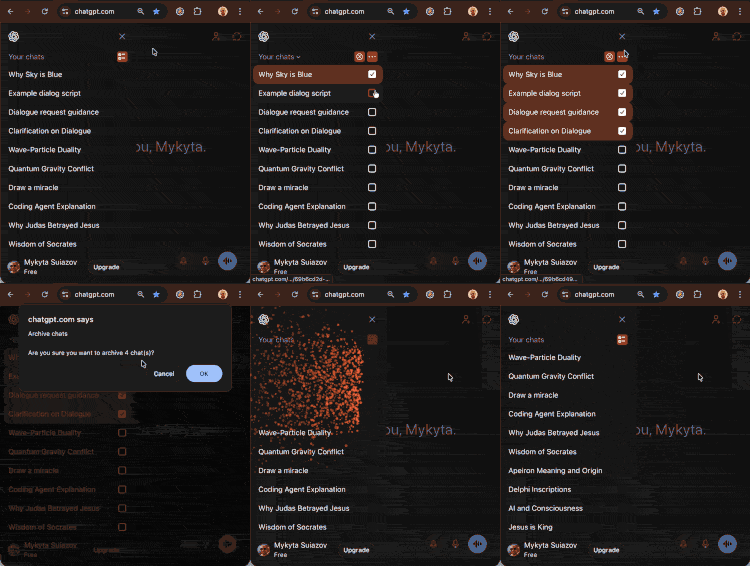
ChatGPT Pro Tools adds a Batch Select mode to your ChatGPT sidebar:
Install the extension (free, Chrome/Edge/Firefox)
Click the Batch Select button at the top of your sidebar
Checkboxes appear next to each conversation
Select the chats you want to remove
Click Delete, Archive, or Move to Project to process them all at once
That's it. What used to take 30 minutes now takes a minute or two — free users work in batches of up to 7 chats, and Pro removes the cap. Batch select also works inside ChatGPT projects, so you can manage conversations there too.
Video Walkthrough
Step-by-Step Guide
Visit the Chrome Web Store and click "Add to Chrome." The extension activates automatically on chatgpt.com.
On ChatGPT, look for the batch select button at the top of the conversation sidebar. Click it to enter selection mode.
Click the checkbox next to each conversation you want to delete or archive. Free users can select up to 7 chats at a time; Pro removes the cap. Tip: hold Shift and click to select all chats between the last selected and the current one — great for selecting a large range at once.
Click Delete to permanently remove selected chats, Archive to move them out of your sidebar, or Move to Project to organize them into a ChatGPT project.
How to Delete All ChatGPT Chats at Once
If you want a completely clean slate — not a selective cleanup — ChatGPT has a native switch for that, and it takes about ten seconds:
On chatgpt.com, click your profile picture and choose Settings.
Switch to the Data controls tab in the settings dialog.
Click Delete all next to "Delete all chats" and confirm. Every conversation is removed permanently.
Two things to know before you press the button. It's irreversible — there is no trash bin or undo, so export the conversations you might need later first. And it's all-or-nothing: if even a handful of chats are worth keeping, Batch Select above is the safer route — tick everything except the keepers (Shift-click selects a whole range) and delete the rest in one pass.
Tips for Managing Your ChatGPT History
- Move to a project instead of deleting — organize useful chats by topic
- Archive instead of delete if you're not sure — you can always unarchive later
- Clean up weekly to prevent sidebar clutter from building up
- Use ChatGPT's native "Pin" feature to keep important conversations at the top
- Keep the sidebar readable — sidebar enhancements add date labels, a sticky Recent header, and calendar and tag filters, so a long history stays navigable
Bulk Move Chats to a Project Instead of Deleting
Deleting isn't always what you want. If a batch of chats belongs together — a research thread, a work project, a course — you can move them all into a ChatGPT project in the same Batch Select flow instead of deleting them. Turn on Batch Select, tick the chats, and choose Move to Project. They leave your main sidebar but stay grouped and searchable, so your history gets lighter without losing anything.
Other Ways to Manage Your ChatGPT History
Deleting is only one part of taming a large history. For the full picture, see our guide on organizing 1,000+ ChatGPT chats with AI tags, filters, and bulk actions. If your goal is to save conversations before deleting them, check out our guides on exporting ChatGPT conversations to a file, copying entire ChatGPT conversations, and downloading all images from a chat. You can also explore other ChatGPT Chrome extensions that help with productivity.
Frequently Asked Questions
Can you delete multiple ChatGPT chats at once?
ChatGPT doesn't have a built-in bulk delete feature. You can only delete chats one by one or delete all chats at once. However, browser extensions like ChatGPT Pro Tools add a batch select mode that lets you select and delete, archive, or move multiple chats to a project at once.
Is there a way to delete multiple chats in ChatGPT at once?
Not with ChatGPT's native interface — it only lets you delete one chat at a time, or wipe everything via Settings → Data controls. A browser extension with batch select, like ChatGPT Pro Tools, adds checkboxes so you can pick several specific chats and delete, archive, or move them together in seconds.
How do I bulk delete ChatGPT conversations?
Install the free ChatGPT Pro Tools extension, click the Batch Select button at the top of your ChatGPT sidebar, check the conversations you want to remove, and click Delete. You can clear a cluttered sidebar in minutes — free in batches of up to 7 chats, uncapped with Pro — or choose Archive or Move to Project instead.
How do I delete all my ChatGPT chats?
Go to ChatGPT Settings → Data controls → Delete all chats. This removes every conversation permanently. If you only want to delete some chats while keeping others, use a browser extension with batch select instead.
Can I archive ChatGPT chats instead of deleting them?
Yes. With ChatGPT Pro Tools, you can batch select conversations and choose to archive or move them to a project instead of deleting. Archived chats are moved out of your sidebar but can be restored later.
Is there a free way to bulk delete ChatGPT chats?
Yes. ChatGPT Pro Tools' Batch Select — pick multiple chats and delete, archive, or move them to a project at once — is free on Chrome, Edge, and Firefox for up to 7 chats per batch, and the optional Pro tier ($4.99/mo) removes the cap. Some other extensions put bulk delete entirely behind a paid plan (around $9.99/month), but you don't need to pay to delete multiple ChatGPT chats at once.