How to Export ChatGPT Conversations to Text Files (2026)
Export any ChatGPT conversation as a plain .txt file in 2 seconds. Universal format, tiny file size, works everywhere. Browser extension.

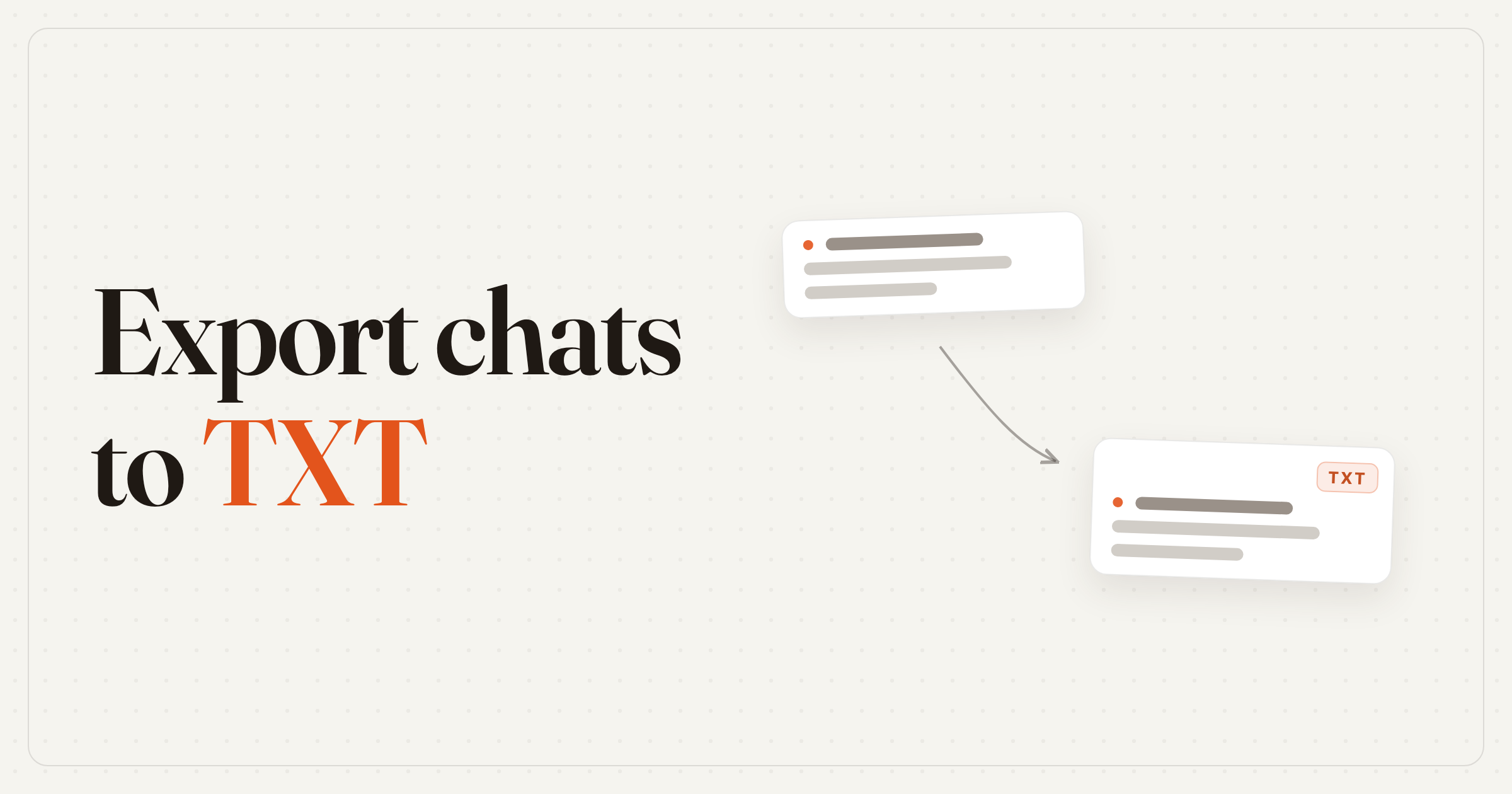
TL;DR: Right-click the chat in your ChatGPT sidebar and pick Export (.txt) — a free extension saves the whole conversation as a labeled plain-text file in about 2 seconds. A .txt opens on anything, weighs a few KB, and your OS can search it. Copy-paste and the JSON built-in export are the slow fallbacks.
Sometimes the simplest format is the best one. Plain text files (.txt) open on every device, take up almost no space, and are easy to search through. If you want a quick, lightweight backup of a ChatGPT conversation, exporting to .txt is the way to go.
Method 1: Export to Text with a Browser Extension (Fastest)
ChatGPT Pro Tools is a free extension that adds export options directly to ChatGPT.
Install ChatGPT Pro Tools from the Chrome Web Store
Right-click any conversation in your ChatGPT sidebar
Click "Export (.txt)"
The text file downloads instantly
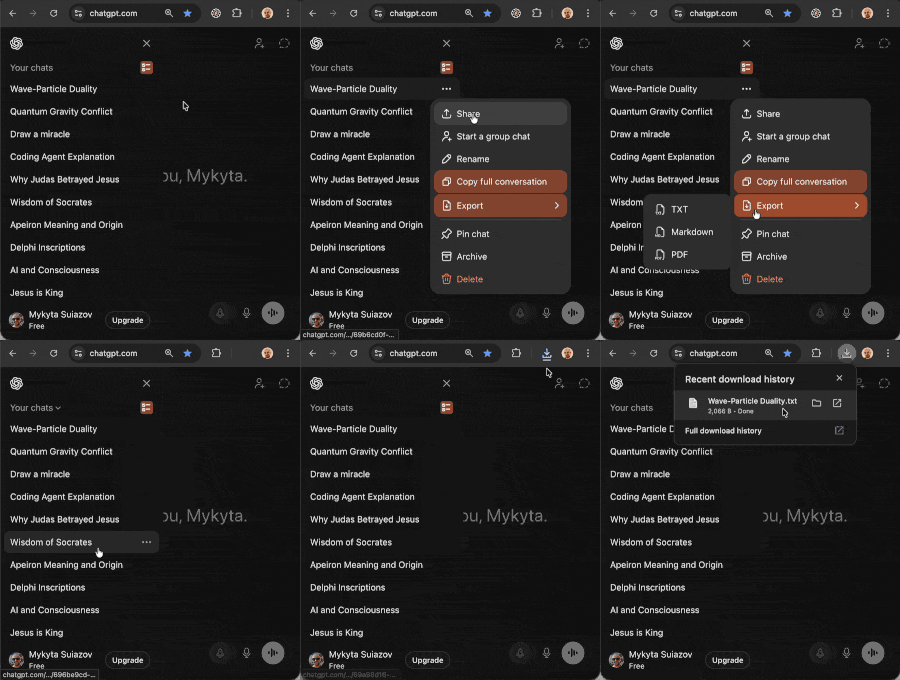
The exported file contains all messages in order, clearly labeled. The chat title is used as the filename.
Why Plain Text?
- Opens everywhere — Notepad, TextEdit, VS Code, any device, any OS
- Tiny file size — a long conversation might be just a few KB
- Easy to search — your OS can search through .txt files natively
- Email-friendly — paste directly into emails or attach as a small file
- No dependencies — no special software, no formatting to break
- Scriptable — easy to process with grep, Python, or any scripting tool
What the Exported File Looks Like
The .txt file is clean and readable. Each message is labeled with the speaker ("You:" or "ChatGPT:") followed by the message content. There's no markup or formatting syntax — just plain, readable text.
Method 2: Manual Copy-Paste
Open the conversation in ChatGPT
Select all text (Ctrl+A / Cmd+A)
Copy (Ctrl+C / Cmd+C)
Open Notepad or TextEdit and paste
Save as .txt
This works for short conversations but is unreliable for long ones. Selecting all text often captures UI elements (buttons, timestamps, sidebar items) that clutter the output.
Method 3: ChatGPT Built-in Export
ChatGPT's built-in export (Settings → Data controls → Export data) gives you a ZIP file containing JSON files — not plain text. You'd need to extract the ZIP, find the right conversation, and convert the JSON to text manually or with a script.
Comparison
| Method | Speed | Clean output? | Single chat? |
|---|---|---|---|
| Browser extension | 2 seconds | Yes | Yes |
| Manual copy-paste | 1-5 minutes | Often messy | Yes |
| Built-in export | Minutes | No (JSON) | No (all chats) |
When to Use Text vs Other Formats
ChatGPT Pro Tools also supports PDF, Word (.docx), Markdown (.md), and JSON exports:
- Text (.txt) — maximum compatibility, simple backups, searching, scripting
- PDF — professional sharing, emailing, printing, archiving
- Word (.docx) — when the conversation still needs editing afterwards
- Markdown — Obsidian, Notion, GitHub, developer workflows with formatting preserved
- JSON — structured data for scripts, pipelines, and archives
For a full overview of all export options, see our complete export guide.
Exporting Many Chats at Once
Need to back up more than one conversation? In the full-screen Chat Workspace you can multi-select conversations and batch-export them — handy when you're archiving a whole project before clearing it out. You can also download every image from a chat as a single ZIP, or copy a full conversation to paste straight into another app.
Frequently Asked Questions
How do I save a ChatGPT conversation as a text file?
Install ChatGPT Pro Tools (free browser extension), right-click any conversation in your ChatGPT sidebar, and select "Export (.txt)". The conversation downloads as a plain text file in about 2 seconds.
What does the exported text file look like?
The .txt file contains all messages in order, with each message labeled as "You:" or "ChatGPT:". It's clean, readable plain text with no formatting markup. The chat title is used as the filename.
Can I search through exported text files?
Yes. Plain text files are fully searchable by your operating system's built-in search (Finder on Mac, File Explorer on Windows) and any text editor. This makes .txt the best format for building a searchable archive of your ChatGPT conversations.
Should I use .txt or .md for exporting ChatGPT?
Use .txt if you want maximum compatibility and simplicity — it opens everywhere. Use .md (Markdown) if you need formatting like code blocks and headings preserved, especially for tools like Obsidian, Notion, or GitHub.