How to Export ChatGPT Conversations to PDF (2026)
Export any ChatGPT conversation as a clean PDF file in 2 seconds. Browser extension — right-click, choose PDF, done. No signup or conversion needed.

TL;DR: Install a free extension, right-click the chat in your ChatGPT sidebar, click Export (.pdf) — a clean PDF with your prompts, replies, highlighted code, and rendered math downloads in about 2 seconds. Print-to-PDF captures the sidebar and buttons too; ChatGPT's built-in export produces JSON, not PDF.
Need to save a ChatGPT conversation as a PDF? Maybe you want to share it with a colleague, attach it to an email, archive it for compliance, or simply keep a clean backup. PDF is the most universal document format — it looks the same on every device and is easy to share.
Here's how to export any ChatGPT conversation to PDF, from the fastest method to manual workarounds.
Method 1: Export to PDF with a Browser Extension (Fastest)
The quickest way is with ChatGPT Pro Tools — a free browser extension for Chrome, Edge, and Firefox.
Install ChatGPT Pro Tools from the Chrome Web Store
Right-click any conversation in your ChatGPT sidebar
Click "Export (.pdf)"
The PDF file downloads instantly
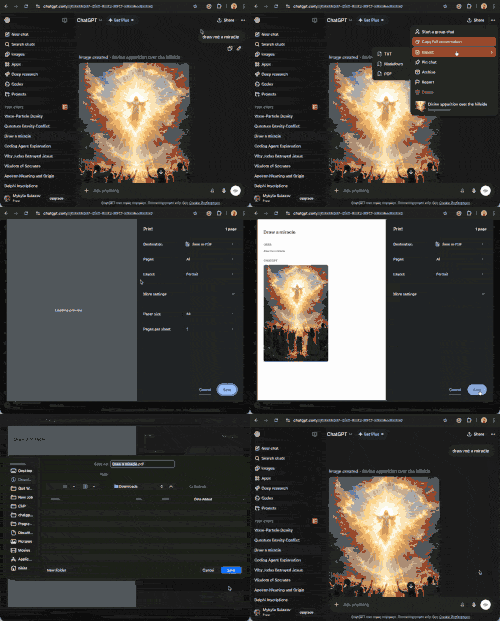
The exported PDF includes all messages in order — your prompts and ChatGPT's responses — with clean formatting. The chat title is used as the filename.
Why PDF?
- Universal format — opens on any device, any OS, no special software needed
- Professional sharing — attach to emails, reports, or presentations
- Archiving — PDFs preserve formatting exactly as intended
- Printing — ready to print without layout issues
- Compliance & documentation — some workplaces require conversation logs in PDF format
Code Blocks and Math Render Properly
Most ways of saving a ChatGPT chat to PDF mangle the technical parts. ChatGPT Pro Tools renders code blocks with syntax highlighting (via CodeMirror) and LaTeX math (via KaTeX), so snippets and equations look right in the exported file instead of collapsing into raw text. If you need an editable document instead, the same menu also exports to DOCX (Microsoft Word) with the same formatting preserved.
Method 2: Browser Print to PDF (Ctrl+P)
You can use your browser's built-in print function:
Open the conversation in ChatGPT
Press Ctrl+P (or Cmd+P on Mac)
Select "Save as PDF" as the destination
Click Save
The problem: this captures the entire webpage — including the sidebar, buttons, headers, and other UI elements. The result is messy and hard to read. You'd also need to scroll through the full conversation first to load all messages.
Method 3: ChatGPT Built-in Export + Convert
Go to ChatGPT Settings → Data controls → Export data
Wait for an email with a download link
Download the ZIP file (contains JSON files)
Find the specific conversation in the JSON files
Convert the JSON to PDF using an online converter
This is the most cumbersome approach. It exports all conversations at once in JSON format, requires multiple steps, and you still need a separate tool to convert to PDF.
Comparison
| Method | Speed | Clean output? | Single chat? |
|---|---|---|---|
| Browser extension | 2 seconds | Yes | Yes |
| Print to PDF | ~30 seconds | No (includes UI) | Yes |
| Built-in export + convert | Minutes | Depends on converter | No (all chats) |
When to Use PDF vs Other Formats
ChatGPT Pro Tools also supports exporting to Word (.docx), Markdown (.md), plain text (.txt), and JSON. Here's when to pick each:
- PDF — sharing, emailing, printing, archiving, compliance
- Markdown — importing into Obsidian, Notion, GitHub, or developer workflows
- Text — lightweight backup, searching, maximum compatibility
For a full overview of all export options, see our complete export guide. Managing a big history? See how to organize 1,000+ ChatGPT chats with search, filters, and AI tags.
Frequently Asked Questions
Can I export a single ChatGPT conversation as PDF?
Yes. With ChatGPT Pro Tools, right-click any conversation in your sidebar and select "Export (.pdf)". The conversation downloads as a clean PDF file in about 2 seconds.
Is the exported PDF formatted properly?
Yes. The PDF includes all messages in order — your prompts and ChatGPT's responses — with clean formatting. The chat title is used as the filename.
Why not just use Print to PDF in my browser?
Browser Print to PDF captures the entire webpage including UI elements like buttons, sidebar, and headers. It also requires you to scroll through the full conversation first. ChatGPT Pro Tools exports only the conversation text in a clean, readable format.
Does exporting to PDF cost anything?
No. PDF export is free in ChatGPT Pro Tools — every export format (PDF, DOCX, Markdown, and TXT) is included at no cost, including batch and project exports. The extension is free to install, with an optional Pro tier ($4.99/mo) for cloud AI tagging — faster and available in any browser including Firefox.