Save & Bookmark ChatGPT Messages
One reply in a long thread had the exact answer — the config snippet, the phrasing, the recipe. Click the bookmark on that message and it lands in a Saved list you can search, so you never scroll a 200-message conversation hunting for it again.
Saved Messages is part of ChatGPT Pro Tools, the free extension for chatgpt.com. A 🔖 button sits on every assistant reply; one click keeps it, and every saved reply collects in the Chat Workspace.
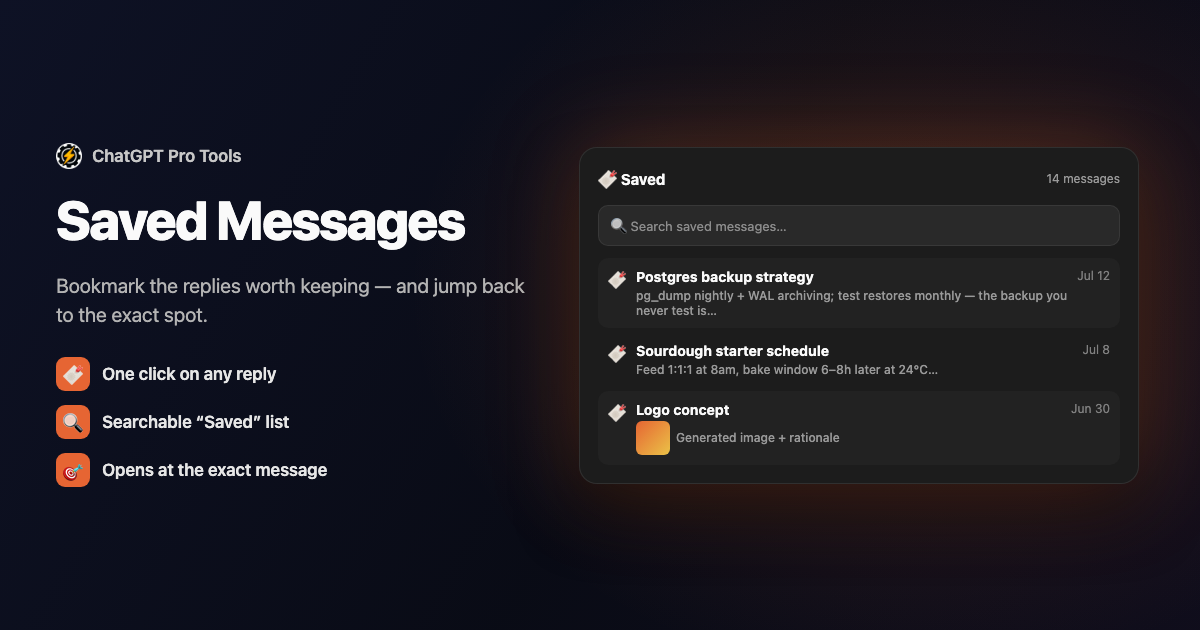
What You Get
- A bookmark button on every reply — one click saves the assistant message to the Saved section
- The full reply, cached — rows show the whole text (clamped to three lines) plus thumbnails for image replies
- Jump back to the source — click a row to open the conversation preview scrolled to that exact message, highlighted
- Per-row Copy — copy the whole message when you just need the text
- Search and filters — find a saved reply by keyword, date, or tag
- Image thumbnails that last — saved image replies keep a baked-in thumbnail that survives ChatGPT's expiring image URLs
- Multi-select bulk delete — clear out saved replies you no longer need in one pass
Why ChatGPT Has No Answer for This
ChatGPT has no bookmarks. There's no way to mark a single reply and find it later — you either scroll the whole conversation again or re-run the prompt and hope for the same answer. Saved Messages gives you a persistent, searchable list of the exact replies worth keeping, each one a click away from its original context.
How to Use It
Get it from the Chrome Web Store or Firefox Add-ons. It activates automatically on chatgpt.com.
Hover an assistant message and click the 🔖 bookmark button. The reply is saved with its full text and, for image replies, a thumbnail.
Open the Chat Workspace and go to the Saved section. Search or filter to the reply you want, then click it to jump back to the message in its conversation, or copy it straight from the row.
Free vs Pro
Saved messages are stored locally in your browser — nothing leaves it. The free tier keeps up to 7 saved messages; the optional Pro tier ($4.99/mo) removes the cap and adds Cloud Sync, an opt-in, end-to-end encrypted mirror that carries your saved messages across devices. Whether or not you go Pro, the free Backup/Restore in Settings exports and imports everything as JSON, so your saved replies are yours to keep.
Frequently Asked Questions
Where do saved messages live?
In a Saved section in the Chat Workspace rail. Each row shows the full cached text of the reply, so you can read it without opening the chat. Saved messages are stored locally in your browser; nothing leaves it unless you turn on Cloud Sync.
Can I get back to the original conversation?
Yes. Click a saved row and the conversation preview opens scrolled to that exact message, highlighted, so you land on the reply in its full context. A per-row Copy button copies the whole message if you just need the text.
What happens to saved images when ChatGPT's image links expire?
The extension bakes a thumbnail into the saved message when you save it, so image replies stay visible in your Saved list even after ChatGPT's original image URLs expire.
How many messages can I save for free?
Up to 7 saved messages on the free tier. The optional Pro tier ($4.99/mo) removes the cap and syncs your saved messages across devices with Cloud Sync. The free Backup/Restore in Settings exports and imports them as JSON for everyone.


