Download All Images from ChatGPT in One Click (2026)
Stop downloading ChatGPT images one by one. Grab every DALL-E generation and upload from a conversation as a single ZIP file. Free extension.

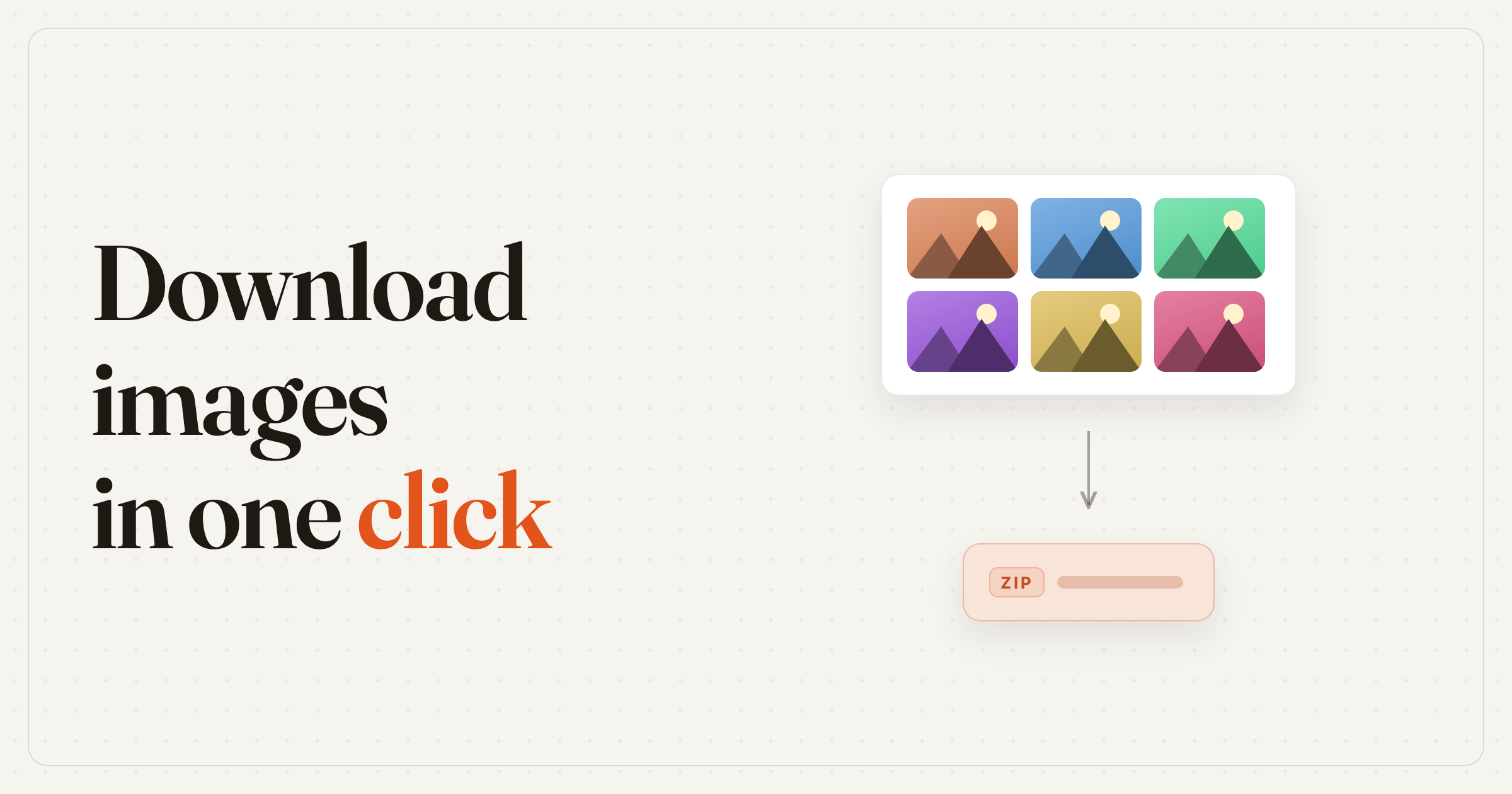
TL;DR: ChatGPT has no "Download All" for images. Install a free extension, open the conversation's three-dot (⋯) menu, choose Export → Images, and press the download button in the window that shows them — every upload and DALL-E generation in the chat lands on your device as one ZIP, in original formats (a chat with a single image skips the window and saves that image as is). Do it soon after generating: DALL-E URLs expire.
ChatGPT conversations often contain images — DALL-E generations, uploaded photos, screenshots, diagrams. But when you want to save them all, there's no "Download All" button. You're stuck right-clicking and saving each image one at a time.
Here's how to download every image from a ChatGPT conversation as a single ZIP file in seconds.
The Problem: No Bulk Image Download in ChatGPT
ChatGPT doesn't offer a way to download all images from a conversation at once. Your only options are:
- Right-click → Save image as — works for one image at a time. Tedious if you have 10+ images in a chat.
- DALL-E download button — some generated images have a small download icon, but it only saves one image and isn't always visible.
This is especially frustrating when you've asked ChatGPT to generate multiple image variations, or when a conversation contains a mix of uploaded reference images and AI-generated results.
Another risk: DALL-E image URLs can expire. If you don't save generated images soon after creation, you may lose access to them entirely.
The Solution: Download Images with a Browser Extension
ChatGPT Pro Tools adds an Images option under Export in every conversation's ⋯ menu. It collects all images in the chat — both uploaded and AI-generated — and packages them into a single ZIP file (a chat with one image gets that image on its own).
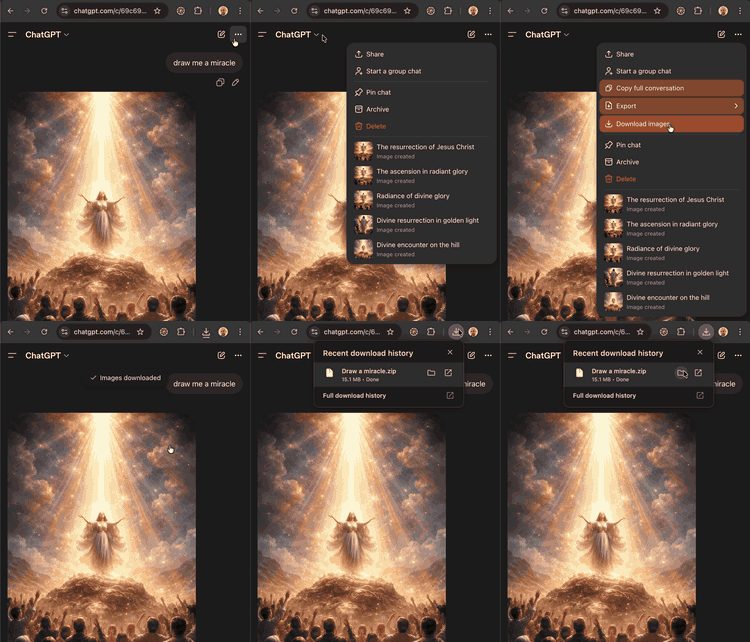
Step-by-Step Guide
Visit the Chrome Web Store and click "Add to Chrome." The extension also works on Edge and Firefox. It activates automatically on chatgpt.com.
Go to any ChatGPT conversation that contains images. This can be a chat where you uploaded photos, asked DALL-E to generate images, or both.
Click the three-dot (⋯) menu at the top of the conversation and open Export. You'll see an Images option added by the extension.
The extension collects every image in the conversation. When there's more than one, a window shows them all, ticked — click the download button and they arrive as one ZIP file, numbered after the chat's title (Trip ideas-1.png, Trip ideas-2.jpg, and so on). A single image downloads on its own.
What Gets Downloaded
ChatGPT Pro Tools finds and downloads two types of images:
- User-uploaded images — photos, screenshots, and files you attached to your messages
- AI-generated images — DALL-E creations, including all variations and edits
Images are saved in their original format (PNG, JPEG, WebP, etc.) and, when there's more than one, bundled into a single ZIP file.
Tips
- Download soon after generation — DALL-E image URLs can expire over time, so save important images while they're still accessible
- Works from the sidebar too — the ⋯ on any chat in the sidebar has the same Export → Images, so you don't have to open the chat first
- No Images option? — it only appears for chats that contain images, and it can take a moment to show up the first time you open Export
Frequently Asked Questions
Can you download all images from a ChatGPT conversation?
ChatGPT doesn't have a built-in bulk download option for images. You can only save them one at a time by right-clicking. The free ChatGPT Pro Tools extension adds an "Images" option under Export in the chat's ⋯ menu that saves every image in a conversation as a single ZIP file — or, when the chat has only one image, saves that image as is.
How do I save DALL-E images from ChatGPT?
You can right-click a DALL-E image and select "Save image as" to save it individually. To download all DALL-E images from a conversation at once, install ChatGPT Pro Tools and choose Export → Images in the chat's ⋯ menu.
Do DALL-E images in ChatGPT expire?
Yes, DALL-E image URLs can expire after some time. Once expired, the images may no longer be viewable or downloadable. It's a good idea to save important AI-generated images soon after they're created.
What image formats are supported?
ChatGPT Pro Tools downloads images in their original format — typically PNG for DALL-E generations and JPEG, PNG, or WebP for uploaded images. When a chat has more than one image, they're bundled into a single ZIP file; a single image is saved as is.