How to Organize 1,000+ ChatGPT Chats (2026)
ChatGPT's sidebar buries hundreds of chats in a flat list. Here's how to organize 1,000+ ChatGPT conversations with AI tags, filters, and bulk actions.

TL;DR: ChatGPT gives you a flat sidebar and one-at-a-time actions — nothing built-in scales to a big history. To organize 1,000+ chats, open a full-screen Chat Workspace (free extension), generate AI Tags from your chat titles in two clicks, then use the filters and multi-select to pin, file, export, or delete in bulk. Minutes, not hours.
If you've used ChatGPT for any length of time, your sidebar is probably a wall of conversations stretching back months. Finding the chat where you worked out that SQL query, or drafted that email, or planned that trip, turns into a scroll-and-pray exercise. The native sidebar simply wasn't built for a history of hundreds — let alone thousands — of chats.
Here's how to bring real order to a large ChatGPT history: search it, filter it, and tag the whole thing automatically.
Why ChatGPT's Sidebar Breaks Down at Scale
ChatGPT's conversation list is a single, flat, reverse-chronological feed. That's fine for your first few dozen chats. Past that, a few problems compound:
- No folders or tags — there's no built-in way to group chats by topic, project, or client.
- Search is a separate overlay — it finds a chat, but you can't narrow the results by date or tag, or act on them in bulk from there.
- Projects need manual filing — Projects act like folders, but you have to move each chat in by hand, and a chat can only live in one.
- No bulk actions — cleaning up means deleting one chat at a time.
The result: you re-ask questions you already answered, because re-typing the prompt is faster than finding the old chat.
The Fix: a Full-Screen Chat Workspace
ChatGPT Pro Tools adds a full-screen Chat Workspace that replaces the cramped native list with a proper workspace for your entire history:
- Search and filters side by side — type a phrase, narrow by date or tag, and go from thousands of chats to the handful you need, in one panel instead of a separate overlay
- List and card views with snippet previews, so you can scan instead of opening each chat
- Multi-select with bulk actions — delete, archive, move to project, pin, or export many chats at once
- Everything in one place — regular conversations, group chats, and projects shown side by side
AI Tags: Auto-Categorize Your Entire History
Search and filters are only as good as your organization — and tagging a thousand chats by hand is a non-starter. This is where the flagship feature comes in: AI Tags.
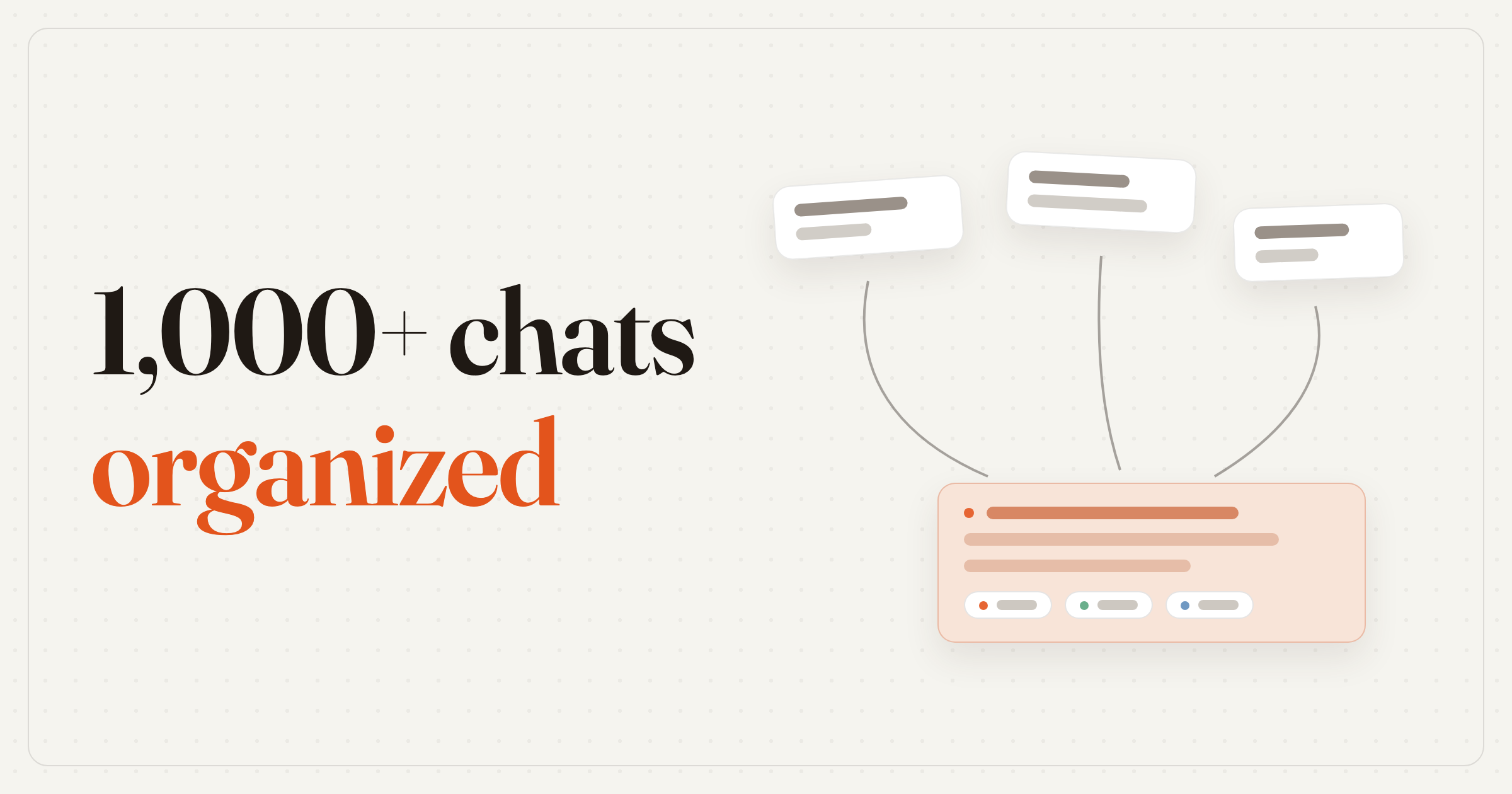
Open the tag settings and click Generate. The AI reads your chat titles and proposes a tag vocabulary — things like Coding, Travel, Writing, Work — tuned to how you actually use ChatGPT. You review and edit the list inline, then click Apply to tag every conversation in your history in one pass.
Two design choices make this practical at scale:
- Titles only, so it's fast. Tags are derived from chat titles — never per-chat content — so even a 1,000-chat history finishes in seconds without tripping ChatGPT's rate limiter.
- No setup. No account and no API keys — tagging works right after install, and it never reads conversation contents.
Once a tag vocabulary exists, new chats can be tagged automatically on the fly as you create them — and chats made on your other devices get caught up when they appear. (Auto-tagging runs in the cloud with the optional Pro tier, in Chrome, Edge and Firefox, and free in Chrome on its built-in AI model once you turn on On-device AI in Settings → AI — a one-time model download.)
Organize 1,000 Chats in Minutes (Step by Step)
Visit the Chrome Web Store and click "Add to Chrome." It's free, works on Chrome, Edge, and Firefox, and activates automatically on chatgpt.com.
On ChatGPT, open the Chat Workspace to see your full history in a searchable, filterable, full-screen panel — conversations, group chats, and projects together.
Open the tag settings and click Generate. In a few seconds you'll have a proposed set of tags built from your chat titles.
Tweak the tag list to taste — rename, merge, or remove tags — then click Apply. Every chat in your history gets tagged at once.
Now your history is navigable. Filter by tag or date, search for a phrase you remember, and multi-select to clean up in bulk.
Bulk Actions: Delete, Archive, Move, Pin, Export
Organizing isn't only about tags — it's also about clearing the noise. With multi-select in the Chat Workspace (or Batch Select in the sidebar) you can act on many chats at once:
- Delete or archive dozens of stale chats in one go — see how to delete multiple ChatGPT chats at once
- Move to a project to file related conversations together
- Pin the chats you return to daily — pins sync both ways with the native ChatGPT sidebar
- Export before you delete — as PDF, Markdown, or plain text, or copy a full conversation to paste elsewhere
- Download images from a chat as a single ZIP — see download all ChatGPT images
Tags vs Folders — Why Tags Win for ChatGPT
If you've tried to organize chats into Projects, you've hit the limit of folders: a conversation about "a Python script for a travel budget" belongs in Coding and Travel and Finance — but a folder forces you to pick one. Tags don't. A single chat can carry several tags, so you find it from any angle. And because AI does the first pass automatically, you skip the manual drag-and-drop filing that makes folder systems collapse once you have a few hundred chats. Folders still win when chats need shared files or instructions — the full breakdown, including how to run both together, is in ChatGPT Folders vs Tags: How to Auto-Organize.
Keep It Organized Going Forward
- Let new chats auto-tag themselves so your history never falls out of order again — free in Chrome once its built-in AI model is set up
- Do a quick weekly pass — archive or delete what you no longer need
- Pin your active threads so they stay at the top
- Export-then-delete long finished projects to keep the list lean without losing the record
Frequently Asked Questions
How do I organize my ChatGPT chats?
ChatGPT itself only gives you a flat, reverse-chronological sidebar and basic projects. To actually organize a large history, use a Chat Workspace extension like ChatGPT Pro Tools: one full-screen panel with search, date and tag filters, and AI-generated tags that categorize every conversation automatically. You can then multi-select chats and delete, archive, move, pin, or export them in bulk.
Can you create folders in ChatGPT?
ChatGPT has Projects, which act like folders, but you have to file each chat manually and a conversation can only live in one project. Tags are a better fit for organizing at scale because one chat can have several tags and AI can apply them for you. ChatGPT Pro Tools generates a tag vocabulary from your chat titles and tags your whole history in one pass.
How do I find an old ChatGPT conversation?
Open the Chat Workspace and narrow the list instead of scrolling it: filter by date or tag, type what you remember into the search box in the same panel, and scan the snippet previews. Because search, filters, and multi-select sit together, you can find a months-old chat and pin, export, or file it in one place.
Is the ChatGPT Pro Tools Chat Workspace free?
Yes. The Chat Workspace, filters, and bulk actions are free, and so are AI Tags: Generate and Apply run in the cloud once a month each on the free plan, in Chrome, Edge and Firefox. The optional Pro tier ($4.99/mo) makes them unlimited and auto-tags new chats in the cloud. In Chrome, tagging can also run on your device for free with no limit, new chats included — a one-time setup that downloads Chrome's built-in AI model. The extension is free to install on Chrome, Edge, and Firefox.
Does AI tagging send my chats to a server?
Tagging reads chat titles only — never conversation contents. In the cloud, the default, a run sends only chat titles and tag names to our server, which has Google's Gemini sort them and stores none of it. In Chrome you can move tagging to your device instead (Settings → AI → On-device AI), and then nothing is sent.
How many ChatGPT chats can it handle?
The Chat Workspace is built for hundreds or thousands of conversations. Because AI tags are derived from titles only, even a 1,000-chat history finishes tagging in seconds without tripping ChatGPT's rate limits.