ChatGPT Folders vs Tags: How to Auto-Organize Your Chats (2026)
ChatGPT gives you folders (Projects) but no tags: a chat gets one home, filed by hand. When folders win, when tags win, and how to auto-organize in 2 clicks.

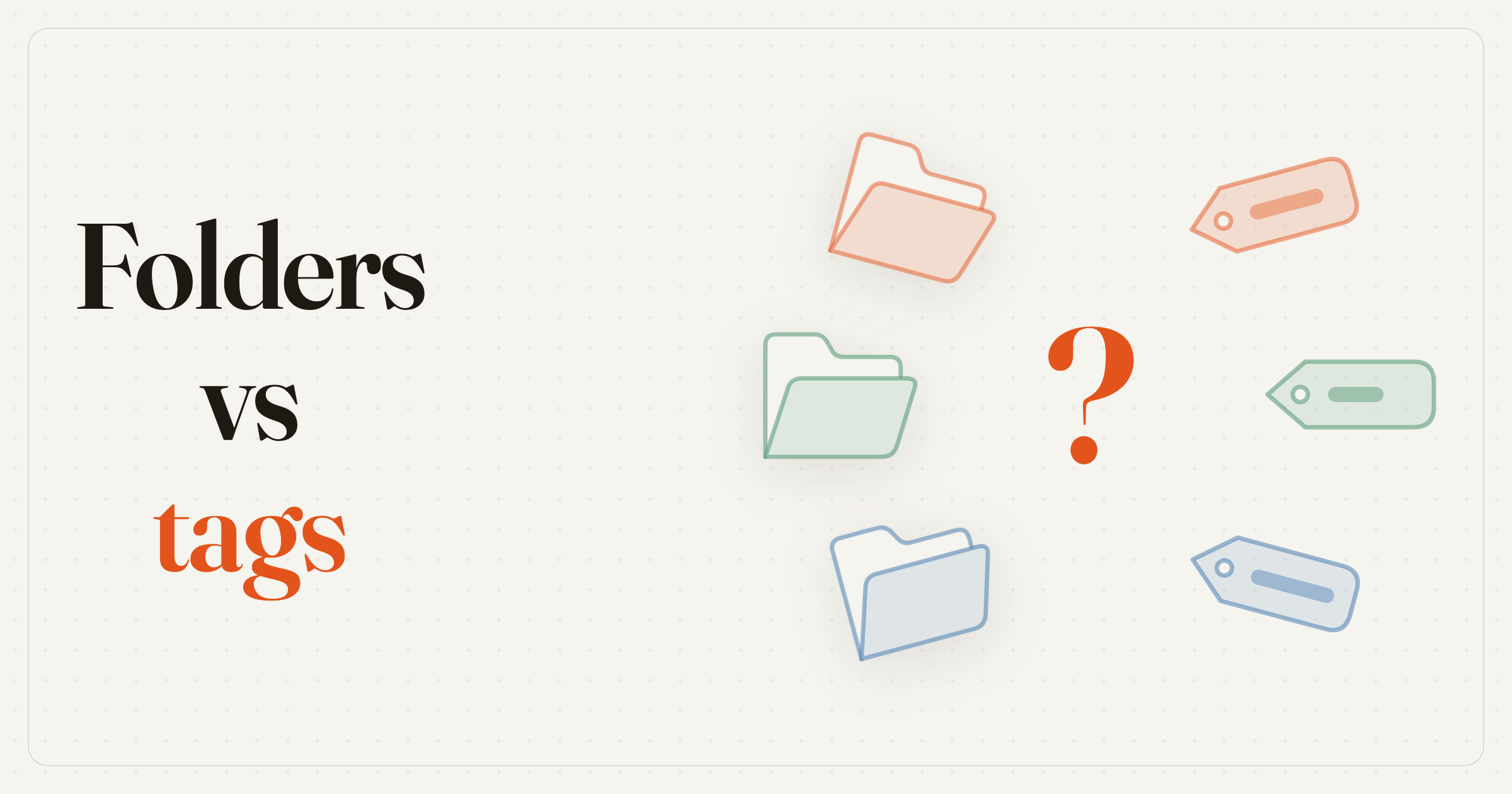
TL;DR: ChatGPT's folders are Projects — free on every plan, but each chat can live in only one, you file chats one at a time, and there are no native tags at all. Folders win when chats need shared files, instructions, or memory; tags win for finding anything in a big history, because one chat can carry several tags and AI can apply them in bulk. The strongest setup uses both: a few Projects for active work, auto-generated tags across everything.
In ChatGPT, folders vs tags isn't a style choice — the two solve different problems. Folders (Projects, in ChatGPT's own vocabulary) bundle a chat with files, custom instructions, and memory, but every chat gets exactly one home and you file each one by hand. Tags don't feed the model anything; they exist so you can find any chat again — and AI can apply them to a thousand conversations in one pass.
This guide covers what each is actually for, where folders genuinely beat tags, and the setup we run ourselves: both at once.
What ChatGPT Gives You Natively
ChatGPT does have folders — they're called Projects, and since September 2025 they're on every plan, Free included. You can create unlimited projects; each holds chats, uploaded reference files, and its own custom instructions, with a per-project memory mode you can switch between default and project-only. What ChatGPT does not have is any tag, label, or color-coding system for conversations — we checked OpenAI's release notes through August 14, 2026, and there's none.
| Built-in tool | What it does | The limit |
|---|---|---|
| Projects | Folder + workspace: chats, files, per-project instructions and memory | One project per chat, filed one chat at a time, no sub-folders |
| Pins | Keeps chats and projects at the top of the sidebar (since June 2026) | A shortlist, not a system — nothing is categorized |
| Archive | Hides a chat from the sidebar without deleting it | One chat at a time, and archived chats are out of sight entirely |
| Search | Finds chats, projects, and files from the sidebar | Finds one chat at a time — you can't act on results in bulk |
File limits are the one place plans differ: a project holds 5 files on Free, 25 on Plus, and 40 on Pro (checked August 15, 2026). Chats per project have no published limit.
How projects appear in the sidebar is a setting, not a fixed layout. The ⋯ menu on the sidebar's chat list holds an Organize chats toggle with two modes — we flipped it on a Free account; here's the same history in both:

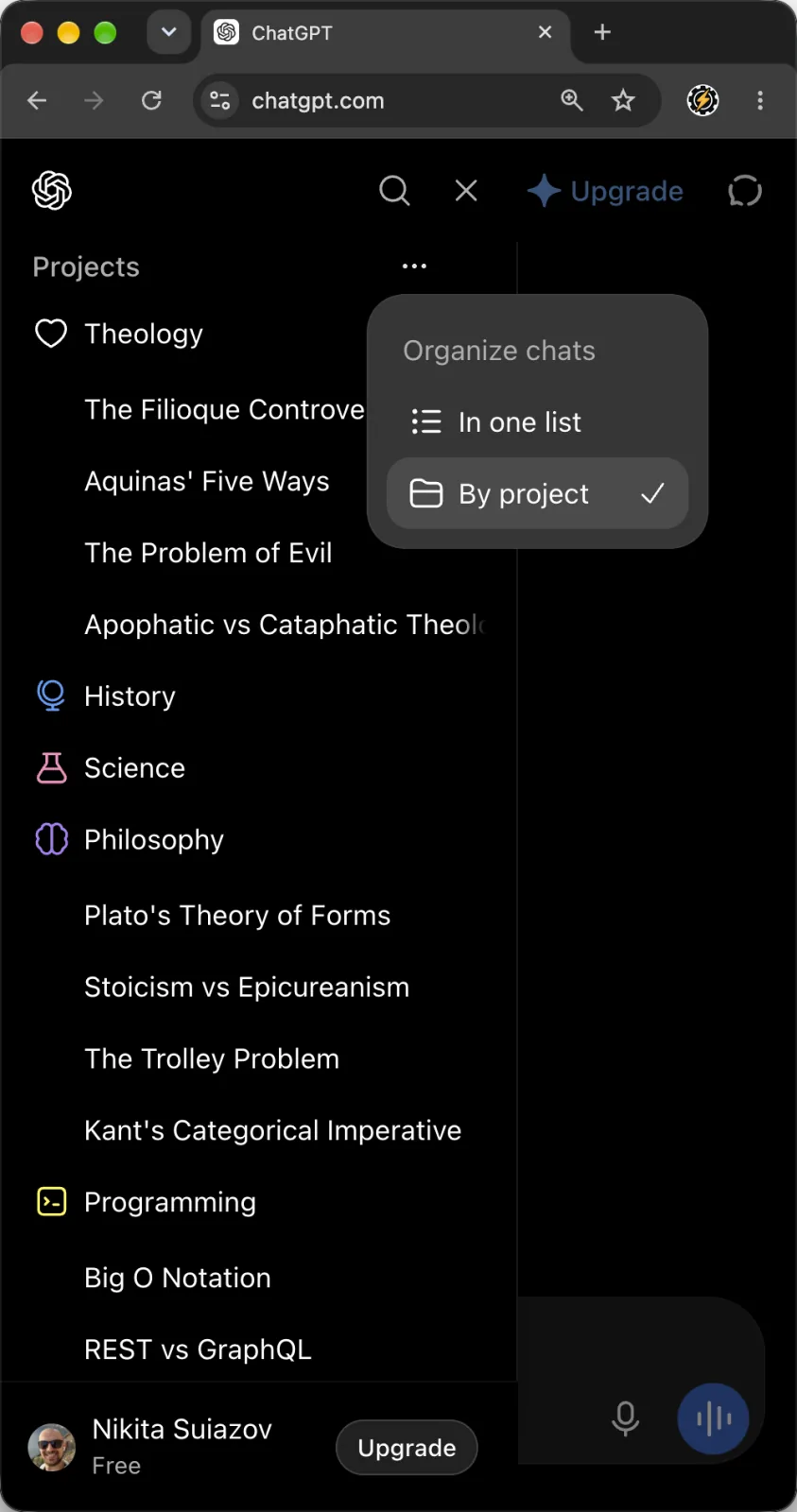
Neither mode changes the filing itself — a chat still gets into a project one drag at a time. By project is the closest native ChatGPT gets to folders in the sidebar; In one list trades the tree for inline project labels and keeps a Projects entry at the top of the sidebar. That entry opens the full Projects page at chatgpt.com/projects — every project in one place, with a search box and All / Created by you / Shared with you filters:
ChatGPT Folders vs Tags: The Real Difference
A folder is a workspace; a tag is an index entry. Moving a chat into a project changes how ChatGPT answers in it — the chat inherits the project's files and instructions. A tag changes nothing about the conversation; it changes how fast you find it later. That's why the two aren't interchangeable, and why "which is better" depends entirely on the job:
| Folders (Projects) | Tags (extension) | |
|---|---|---|
| Homes per chat | Exactly one — moving is the only option | As many as apply — "React login bug" sits under both Coding and Debugging |
| How chats get filed | By hand, one at a time (drag, or chat menu → Move to project) | In bulk — AI proposes tags from titles, one Apply labels the whole history |
| Organizing old chats | Manual per chat; no multi-select move exists | 1,000+ chats in a single pass |
| Context for the model | Yes — files, custom instructions, project memory | No — tags organize, they don't feed the model |
| Hierarchy | Flat list, no sub-folders | Flat too — overlapping tags replace nesting |
| Built into ChatGPT | Yes, every plan | No — no native tags as of Aug 2026 |
| Deleting the container | Permanently deletes every chat and file inside | Removing a tag never touches the chat |
That last row deserves a second look: deleting a project deletes its chats, permanently — they don't return to the sidebar. Folders in ChatGPT are containers in the strictest sense. Tags are annotations; there is nothing to lose by rearranging them.
When Folders Are Better
Folders win whenever the chats need to share something beyond a topic label. A project is the only native way to make a set of conversations behave differently:
- The chats need files. Upload a spec, a dataset, or brand guidelines once, and every chat in the project can reference them — no re-uploading per conversation.
- You want per-project instructions. "Answer in our support voice" or "always respond in German" set once, applied to every chat inside.
- Work must stay separated. Project-only memory keeps client A's context from leaking into client B's chats — and since August 14, 2026 you can switch an existing (unshared) project to it.
- You're collaborating. Project sharing works on every plan (edit or chat access), which tags can't replicate.
- It's one of a handful of live endeavors. Three to five active projects stay navigable; hand-filing is cheap at that scale.
The honest limitation of tags is exactly this: a tag will never hand the model a file or an instruction. If the point of grouping chats is to change what ChatGPT knows inside them, folders aren't just better — they're the only tool that does it.
When Tags Are Better
Tags win the moment the job flips from working in a group of chats to finding things across all of them:
- Your history is already big. There's no bulk way to move chats into projects — hundreds of chats means hundreds of drags. A tag pass covers the same history in one Apply.
- Chats cross topics. A conversation about a Python script for a travel budget belongs in Coding and Travel and Finance. A folder forces one choice; tags don't.
- You don't want filing to be a habit. Once a tag vocabulary exists, new chats are tagged automatically as you create them — the system maintains itself.
- You act on groups, not single chats. Filter by tag and date, multi-select, then delete, archive, move, or export in bulk.
- Priorities change. Re-tagging a whole history is one pass; restructuring folders is chat-by-chat again.
How to Auto-Organize Your Chats with AI Tags
Tags only beat folders if applying them costs nothing — hand-tagging 1,000 chats is the same chore as hand-filing them. This is the part we built ChatGPT Pro Tools around, so read this section as a first-hand walkthrough of our own extension, not a neutral review.
Add ChatGPT Pro Tools from the Chrome Web Store — it also runs on Edge and Firefox.
On chatgpt.com, open the full-screen Chat Workspace — your whole history in one view, with search, date and tag filters, and multi-select together.
AI Tags reads your chat titles — never the conversation text — and proposes a tag set that fits your history.
Rename, merge, or drop proposed tags inline, then click Apply. Every chat in your history gets labeled in one pass.
New chats are tagged automatically as you create them. From here, organizing is two clicks a month, not an evening of dragging.
On the free tier the workflow above runs in the cloud once a month — one Generate and one Apply, in Chrome, Edge or Firefox, each sending only chat titles and tag names. The Pro tier ($4.99/mo) makes it unlimited and auto-tags new chats in the cloud. In Chrome the free tier can also run all of it on your device, as often as you like and auto-tagging included — a one-time setup that downloads Chrome's built-in AI model.
The Best Setup: Folders and Tags Together
The folders-or-tags framing hides the actual answer: they layer. Projects are workbenches — a few of them, for the work that needs files and instructions. Tags are the index over everything, including the chats already sitting inside projects. Here's the split that holds up:
- Active client or product work that references the same files
- Anything needing its own instructions or separated memory
- Work you share with someone else
- The other 90% of your history — one-off questions, research, drafts
- Cross-topic chats that would fight a single folder
- Finished project chats you'll need to find again someday
Here's the whole point in one take, in the extension's Chat Workspace. Projects and Recents sit in a single view, with the tag row across the top counting chats from both. Clicking two tag chips narrows both sections at once — each project collapses to its matching chats instead of dropping out of view. Then one selection sweeps across the boundary: chats ticked inside two different projects and in Recents together, and a single Export turns the whole set into documents in one zip. No native surface can even show that combination, let alone act on it.
In practice: keep three to five projects for live endeavors, run one Generate → Apply pass over your history, and let auto-tagging cover everything new. Pin the threads you return to daily — native pins hold both chats and projects. Once a month, filter a stale tag, multi-select (the free tier selects 7 chats at a time; Pro removes the cap), and archive or export what's done. The full large-history routine — filters, previews, bulk cleanup — is in our guide to organizing 1,000+ ChatGPT chats.
How we checked: OpenAI's Projects documentation and release notes were fetched on August 15, 2026. We build ChatGPT Pro Tools, and the AI Tags walkthrough above is first-hand.


Frequently Asked Questions
Does ChatGPT have folders?
Yes. ChatGPT's folders are called Projects, and they're on every plan — Free included — since September 2025. You can create unlimited projects, each holding chats plus reference files (5 on Free, 25 on Plus, 40 on Pro) and its own custom instructions. What Projects don't do: a chat can only live in one project, there's no multi-select to file chats in bulk, and there are no sub-folders.
Does ChatGPT have tags or labels for chats?
No. As of August 2026 there is no native tag, label, or color-coding feature for ChatGPT conversations — we checked OpenAI's release notes and the Projects documentation. The sidebar offers recency grouping, Pinned, Projects, and Archive. Tagging chats requires a browser extension.
Can a ChatGPT chat be in two projects at once?
No. Projects use move semantics: a chat lives in exactly one project, and moving it is the only option — there is no add-to-multiple or copy. That single-home constraint is the main reason tags exist: a tagged chat can carry several tags at once, so you can find it from any angle.
What happens if I delete a ChatGPT project?
Deleting a project permanently deletes every chat, file, and instruction inside it — the chats do not return to your sidebar, and OpenAI says the deletion cannot be undone. If a project holds anything worth keeping, export those chats first. This is a real difference from tags: deleting a tag never touches the chats that carried it.
Are AI Tags free?
Yes. Generate and Apply run in the cloud by default, in Chrome, Edge and Firefox: the free plan gets one of each a month, and the Pro tier ($4.99/mo) makes them unlimited and auto-tags new chats in the cloud. A cloud run sends only chat titles and tag names. In Chrome you can also run all of it on your device for free, with no limit and auto-tagging included — a one-time setup that downloads Chrome's built-in AI model.
Are folders or tags better for organizing ChatGPT?
Both, for different jobs. Folders (Projects) are better when chats need shared context — files, custom instructions, project memory — because a project changes how the model answers. Tags are better for finding chats in a large history: one chat can carry several tags, and AI can apply them to your whole history in one pass. The strongest setup keeps a few projects for active work and tags across everything.