Pin ChatGPT Chats, Projects & GPTs
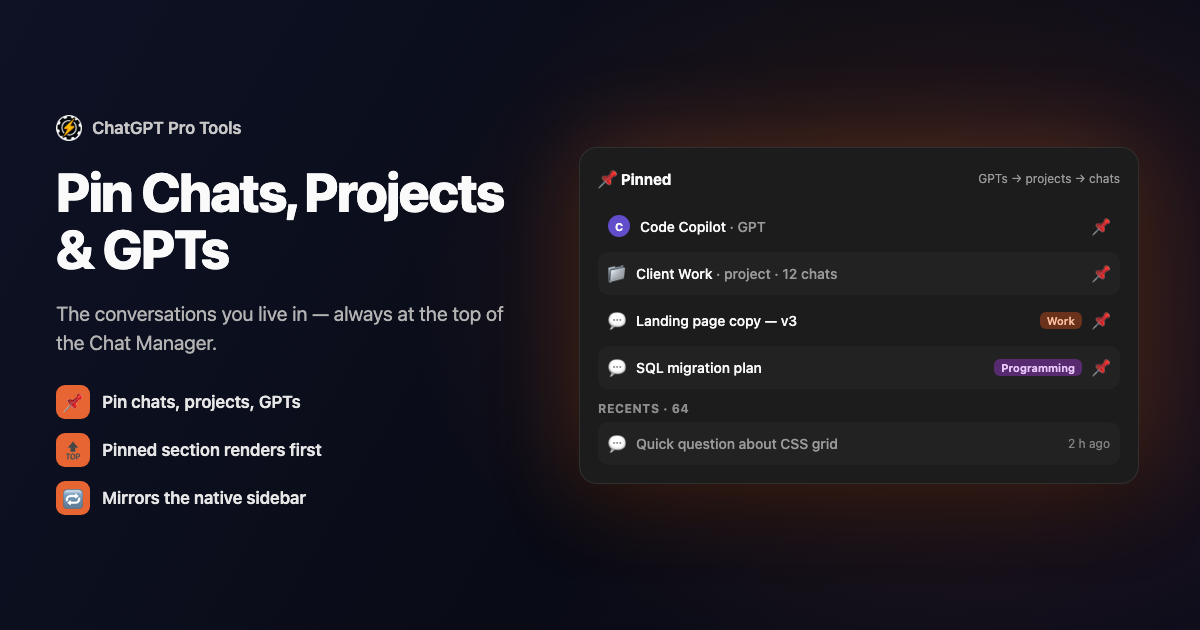
The chats you open every day belong at the top, not buried under 300 newer ones. Pin them, and a Pinned section sits first in the full-screen Chat Workspace — chats, projects, group chats, and custom GPTs, in the same order ChatGPT's own sidebar uses.
Pinning is built into ChatGPT Pro Tools, the free extension for chatgpt.com. When you pin from the Chat Workspace, the pin saves through ChatGPT's own pins API — so it's a real pin on your account, not a local bookmark the extension keeps to itself.
What You Get
- Pin chats, projects, and group chats — right from the Chat Workspace, no trip back to the sidebar
- A Pinned section that comes first — mirroring the native sidebar's order: GPTs, then projects, then chats
- Custom GPTs as quick-open rows — pinned GPTs from the native sidebar show up as link rows you click to jump straight in
- Instant pickup from the sidebar — pin a chat in ChatGPT's sidebar and it appears pinned in the Chat Workspace right away
- Saved through ChatGPT's own pins API — no 7-item cap, nothing stored locally, nothing for Cloud Sync to carry
Why ChatGPT's Native Pinning Isn't Enough
ChatGPT does let you pin — but only in the sidebar. When you're in a full-screen manager searching, filtering, or running bulk actions across hundreds of chats, you can't pin from there; you have to go back to the cramped list. The Chat Workspace puts pin and unpin right in the panel and shows one Pinned section across chats, projects, group chats, and GPTs — the things you actually return to.
How to Use It
Get it from the Chrome Web Store or Firefox Add-ons. It activates automatically on chatgpt.com.
Click the Chat Workspace button the extension adds to ChatGPT's sidebar. Your full history opens, grouped Pinned → Projects → Recents.
Pin any chat, project, or group chat from the panel — it jumps to the Pinned section up top. Unpin the same way when it's no longer a daily thread.
Free vs Pro
Pinning is free, with no limit. There's no 7-pin cap because pins aren't stored in the extension at all — they live in ChatGPT's own account data through its pins API, the same place native pins go. That also means there's nothing here for Cloud Sync to carry: your pins already follow your ChatGPT account. Where the optional Pro tier ($4.99/mo) matters is the extension's local features — saved messages, highlights, and notes — which are capped at 7 each on the free tier. The extension uses your existing ChatGPT session and sends your conversations nowhere of its own.
Frequently Asked Questions
Do pins show up in ChatGPT's own sidebar?
Yes. Pins made in ChatGPT's sidebar appear in the Chat Workspace instantly. Pins you make in the Chat Workspace save through ChatGPT's own pins API and show up in the native sidebar after the next page reload, because ChatGPT only refetches pins when the page loads.
Is there a limit on how many chats I can pin?
No. Pinning is free with no cap, because pins aren't stored in the extension at all — they live in ChatGPT's own account data through its pins API. There's nothing here for Cloud Sync to carry either; your pins already follow your ChatGPT account.
Can I pin projects and custom GPTs, not just chats?
Yes. You can pin and unpin chats, group chats, and projects right from the Chat Workspace. Pinned custom GPTs appear as quick-open link rows — click one to jump straight into that GPT. Pin a GPT from its own page's native menu, and unpin it from the panel.
Is pinning free?
Yes. Pinning chats, projects, group chats, and GPTs is free, with no cap. The extension is free to install — an optional Pro tier ($4.99/mo) removes the caps on other local features like saved messages and highlights.


