Highlight ChatGPT Replies — and Keep the Marks
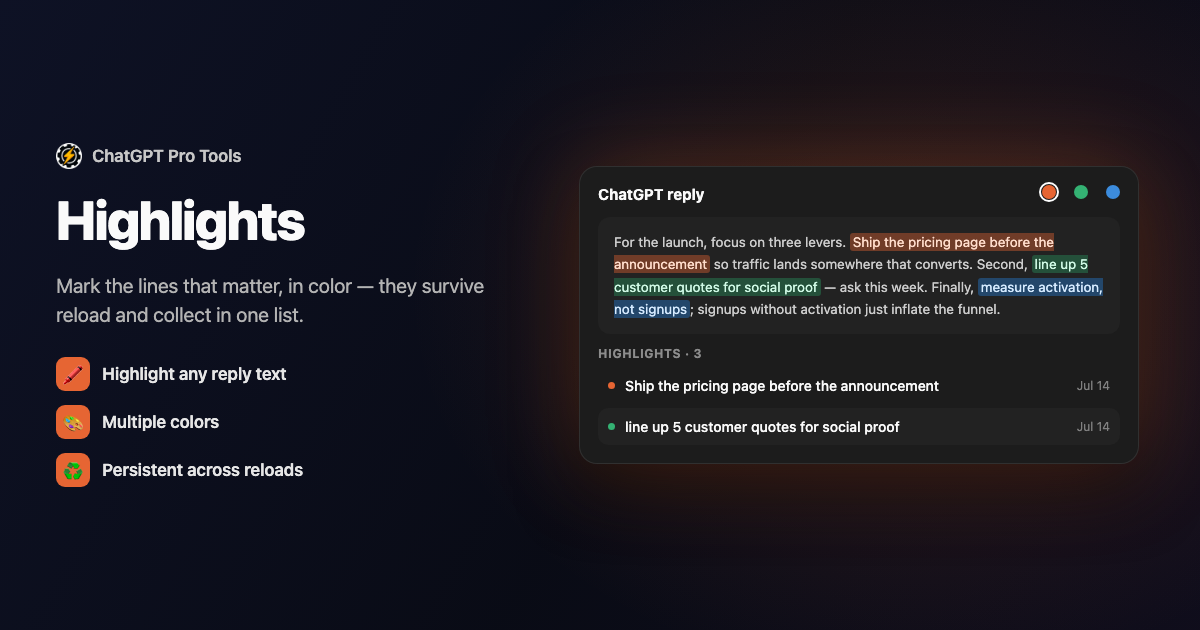
Select the two sentences that actually answered your question, click Highlight, and they stay marked in color — still there when you reopen the chat next week, because the highlight re-anchors itself to the text. The important lines stop drowning in the wall of reply.
Highlights is part of ChatGPT Pro Tools, the free extension for chatgpt.com. The Highlight button appears right in ChatGPT's own selection toolbar, and every mark you make collects in the Chat Workspace.
What You Get
- Highlight from ChatGPT's own toolbar — select text in a reply and the Highlight button appears in the native selection toolbar
- Marks that survive reload — each highlight re-anchors by text position, so it's still there when you reopen the chat
- Multiple colors — apply the current color in one click, or open the palette to switch
- Recolor or remove — click any highlight to change its color or clear it
- Works in the Chat Workspace too — highlights render on the live page and inside the conversation preview
- A Highlights rail section — every highlight in one list, searchable and filterable by color, date, and tag
- Per-chat highlight view — chats with highlights show an icon on their row that opens a highlights-only view
Why ChatGPT Has No Answer for This
ChatGPT has no highlighting. The text you want to mark is just text — reopen the conversation and there's nothing to show which lines mattered. Highlights adds persistent, colored marks that stay put across reloads, so a reply you studied once still reads at a glance the next time you open it.
How to Use It
Get it from the Chrome Web Store or Firefox Add-ons. It activates automatically on chatgpt.com.
Highlight text in any assistant reply — the Highlight button shows up in ChatGPT's native selection toolbar. One click applies the current color; open the palette to pick another.
Open the Chat Workspace's Highlights section to see every mark in one list. Filter by color, date, or tag, or open a single chat's highlights-only view from its row.
Free vs Pro
Highlights are stored locally in your browser — nothing leaves it. The free tier keeps up to 7 highlights; the optional Pro tier ($4.99/mo) removes the cap and adds Cloud Sync, an opt-in, end-to-end encrypted mirror that carries your highlights across devices. Either way, the free Backup/Restore in Settings exports and imports everything as JSON. Highlights sit naturally alongside saved messages and notes in the same Chat Workspace rail.
Frequently Asked Questions
Do highlights survive a page reload?
Yes. Each highlight is re-anchored by its text position, so it reappears in the same place when you reopen the conversation — it isn't lost when the page reloads.
Can I use different colors?
Yes. Apply the current color in one click, or open the palette to switch colors. Click any existing highlight to recolor it or remove it.
Do highlights work inside the Chat Workspace?
Yes. Highlights render both on the live chatgpt.com page and inside the Chat Workspace's conversation preview. The Highlights rail section lists every one, searchable and filterable by color, date, and tag, and any chat with highlights shows an icon on its row that opens a highlights-only view.
How many highlights can I make for free?
Up to 7 highlights on the free tier. The optional Pro tier ($4.99/mo) removes the cap and syncs your highlights across devices with Cloud Sync. The free Backup/Restore in Settings exports and imports them as JSON for everyone.


