Add Notes to Your ChatGPT Chats
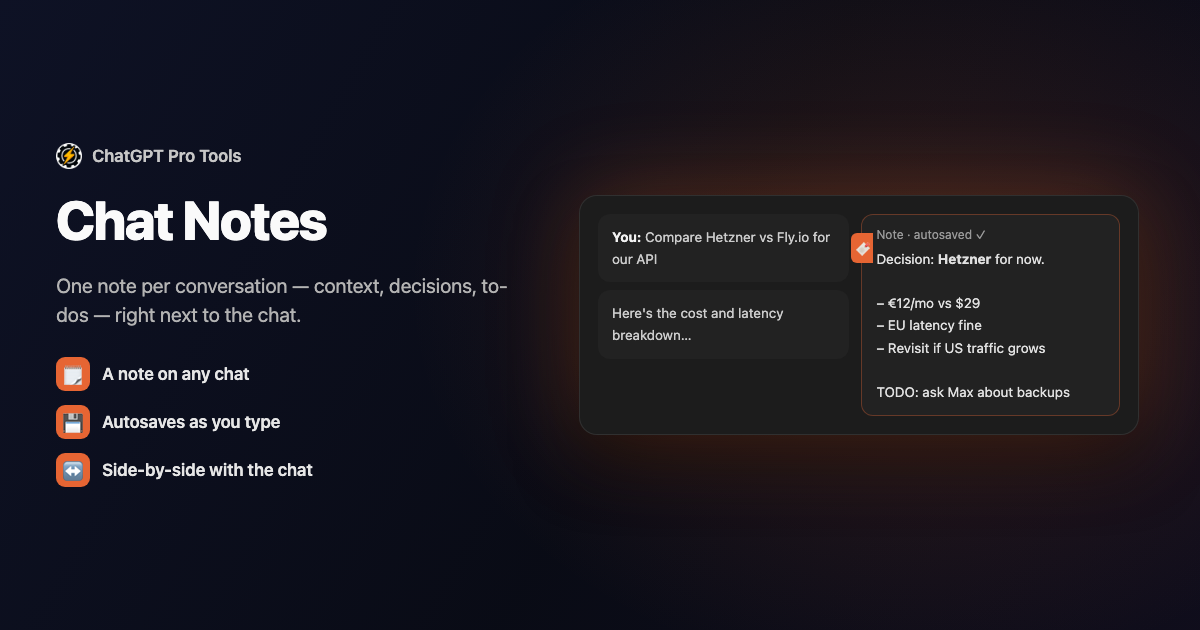
Open a chat and there's a note tab on the right edge — click it, a drawer slides in, and you jot "final version is message 14, ignore the rest." It autosaves, and it's waiting there the next time you open that conversation.
Chat Notes is part of ChatGPT Pro Tools, the free extension for chatgpt.com. Every conversation gets one free-form note, and all your notes collect in the Chat Workspace for later.
What You Get
- One note per conversation — a free-form note attached to any chat
- A note tab on the chat's edge — click the bookmark tab on the right to slide the drawer in
- Autosave — the note saves as you type, no save button to remember
- Resizable drawer — drag the drawer edge to make room for a longer note
- A Notes rail section — every note listed in the Chat Workspace
- Split view — open a note to see the chat and the note side by side, editable, with a resizable divider
- A note marker on rows — chats with a note show an icon that opens a note-only window
- A summary beside it — the same tab holds the chat's AI summary, one switch away from the note
Why ChatGPT Has No Answer for This
ChatGPT gives you nowhere to jot why a chat matters, what you concluded, or what to do next — the conversation itself is all you get. Chat Notes adds a private note to any conversation, so the context you'd otherwise keep in your head (or a separate doc) lives right next to the chat it belongs to.
How to Use It
Get it from the Chrome Web Store or Firefox Add-ons. It activates automatically on chatgpt.com.
In any chat, click the note tab on the right edge. The drawer slides in — type your note and it autosaves. Drag the edge to resize if you need more room.
Open the Chat Workspace's Notes section to see all your notes. Open one to get the chat and note side by side in a split view, or jump into a chat's note-only window from its row.
Free vs Pro
Notes are stored locally in your browser — nothing leaves it. The free tier keeps up to 7 notes; the optional Pro tier ($4.99/mo) removes the cap and adds Cloud Sync, an opt-in, end-to-end encrypted mirror that carries your notes across devices. Either way, the free Backup/Restore in Settings exports and imports everything as JSON. Notes sit alongside saved messages and highlights in the same Chat Workspace rail — one place for everything you've kept.
Frequently Asked Questions
Where is the note button?
It's a bookmark tab on the right edge of the chat window. Click it and a note drawer slides in; type your note and it autosaves as you go. Drag the drawer's edge to resize it.
Can I see the chat and my note together?
Yes. Open a note from the Notes section in the Chat Workspace and the conversation and note show side by side in a split view — editable, autosaved, with a resizable divider between them.
How many notes can I keep for free?
One free-form note per chat, up to 7 notes on the free tier. The optional Pro tier ($4.99/mo) removes the cap and syncs your notes across devices with Cloud Sync.
Is my note stored anywhere online?
No, not by default. Notes live locally in your browser. They only leave it if you turn on Cloud Sync, which is opt-in, end-to-end encrypted, and part of the Pro tier. The free Backup/Restore in Settings exports and imports your notes as JSON.


