Summarize Your ChatGPT Chats with AI
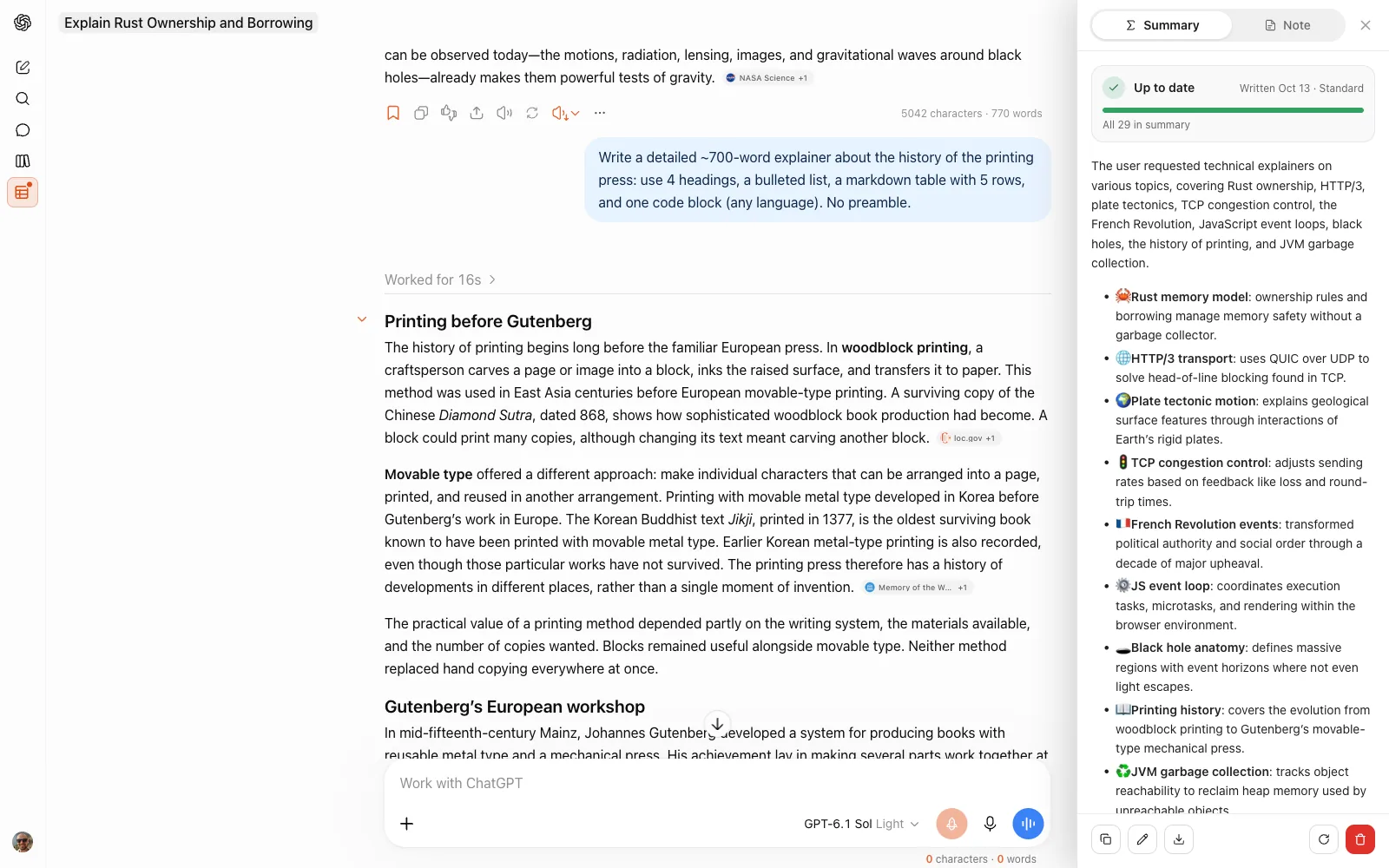
Chat Summary writes an AI summary of any ChatGPT chat — what was decided, what's still open, what comes next — and keeps it with that chat. Come back a week later and it tells you how many messages were written since; one click on Update brings it up to date.
It's part of ChatGPT Pro Tools, the free extension for chatgpt.com: a Summary tab on the right edge of every chat, beside the chat's note. It runs in the cloud by default, so it works in Chrome, Edge and Firefox alike.
What You Get
Three lengths
Brief: the gist and 2–3 points. Standard: the gist and 5–8 key points. Detailed: everything important, in sections.
An emoji for every point
Each point opens with an emoji that pictures it — ✅ for a decision, ⚠️ a problem, ❓ an open question, ➡️ a next step. On by default, off with one switch.
Kept with the chat
Reopen the chat and the summary is there, with a count of the messages written since and Update to catch it up.
All in one list
Every summary gathers in the Chat Workspace's Summaries section, and a chat that has one shows an icon that opens it.
Edit, copy, export
Fix a line right in the text, copy the summary, or export it as PDF, Word, Markdown or TXT.
In the chat's language
A chat held in Spanish gets its summary in Spanish: whichever language most of the chat is in.
Why Not Just Ask ChatGPT for a Summary?
You can type "summarize this chat" and ChatGPT will, but its summary becomes one more message in the conversation. The next reply buries it, it's out of date as soon as the chat moves on, and a fresh one means asking again. Chat Summary sits beside the chat instead of inside it, so the conversation stays as it was.
It's also the clean way to carry a long chat into a new one: copy the summary and paste it as the new chat's first message. The decisions and open questions come along; the hundred messages around them don't.
How to Summarize a ChatGPT Chat
Get it from the Chrome Web Store or Firefox Add-ons. It activates automatically on chatgpt.com.
Click the tab on the right edge of the chat, or pick Summarize chat in the chat's ⋯ menu, in the sidebar or the Chat Workspace.
Brief, Standard or Detailed, emoji on or off. In the cloud the summary is ready in seconds, and it stays with the chat.
When new messages come in, the panel and the chat's menu say how many. Update rewrites the summary from the whole chat; Regenerate lets you pick a new length first.
Free vs Pro
Chat Summary runs in the cloud by default, in Chrome, Edge and Firefox: one free summary a month, unlimited with the optional Pro tier ($4.99/mo). On Chrome it can also run on your device, free and with no limit: turn on Settings → AI → On-device AI (a one-time download of Chrome's built-in model) and pick it from the chip beside Summarize.
| Free | Pro | On your device, any plan | |
|---|---|---|---|
| Runs on | Our cloud | Our cloud | Chrome's built-in AI |
| Summaries | 1 a month | Unlimited | Unlimited |
| On a very long chat | Reads its newest ~150k tokens | Reads the whole chat, up to ~850k tokens | Reads its newest part |
| Speed | Seconds | Seconds | Slower: a few seconds per exchange |
| Browsers | Chrome, Edge, Firefox | Chrome, Edge, Firefox | Chrome |
A cloud run sends that chat's title and the text of its messages — an image only as the mark [image], an attached file only by its name — and only when you click Summarize or Update; our server has Google's Gemini write the summary and keeps none of it. On your device nothing is sent. The summary itself is kept in your browser and in the free Backup / Restore in Settings, and with Pro, Cloud Sync carries it to your other devices, end-to-end encrypted.
Frequently Asked Questions
Is the ChatGPT chat summary free?
Yes. The free plan includes one cloud summary a month in Chrome, Edge or Firefox, and the optional Pro tier ($4.99/mo) makes cloud summaries unlimited and reads even a very long chat whole. On Chrome you can also summarize on your device for free, with no limit: turn on On-device AI in Settings → AI (a one-time model download).
Does it send my chat to a server?
In the cloud, the default, yes: a click on Summarize or Update sends that chat's title and the text of its messages — an image only as the mark [image], an attached file only by its name — to our server, which has Google's Gemini write the summary and keeps none of it. It's the one feature of ours that sends a chat's messages, and only on that click. On your device nothing is sent.
Can I continue a long chat in a new one?
Yes. Summarize it, click Copy, and paste the summary as the first message of a new chat: the decisions and open questions carry over without the whole history.
What happens when the chat goes on?
The summary stays as written and says how many messages came after it, in its panel and in the chat's menu. Click Update and it's rewritten from the whole chat; Regenerate does the same at a length you pick anew.
Which language is the summary in?
The language most of the chat is in, in the cloud and on your device alike.


